Finance Guide
Everything you can do, screen by screen, starting from login.
Login
The entry point to the system. Choose your module, then sign in with your email and password.
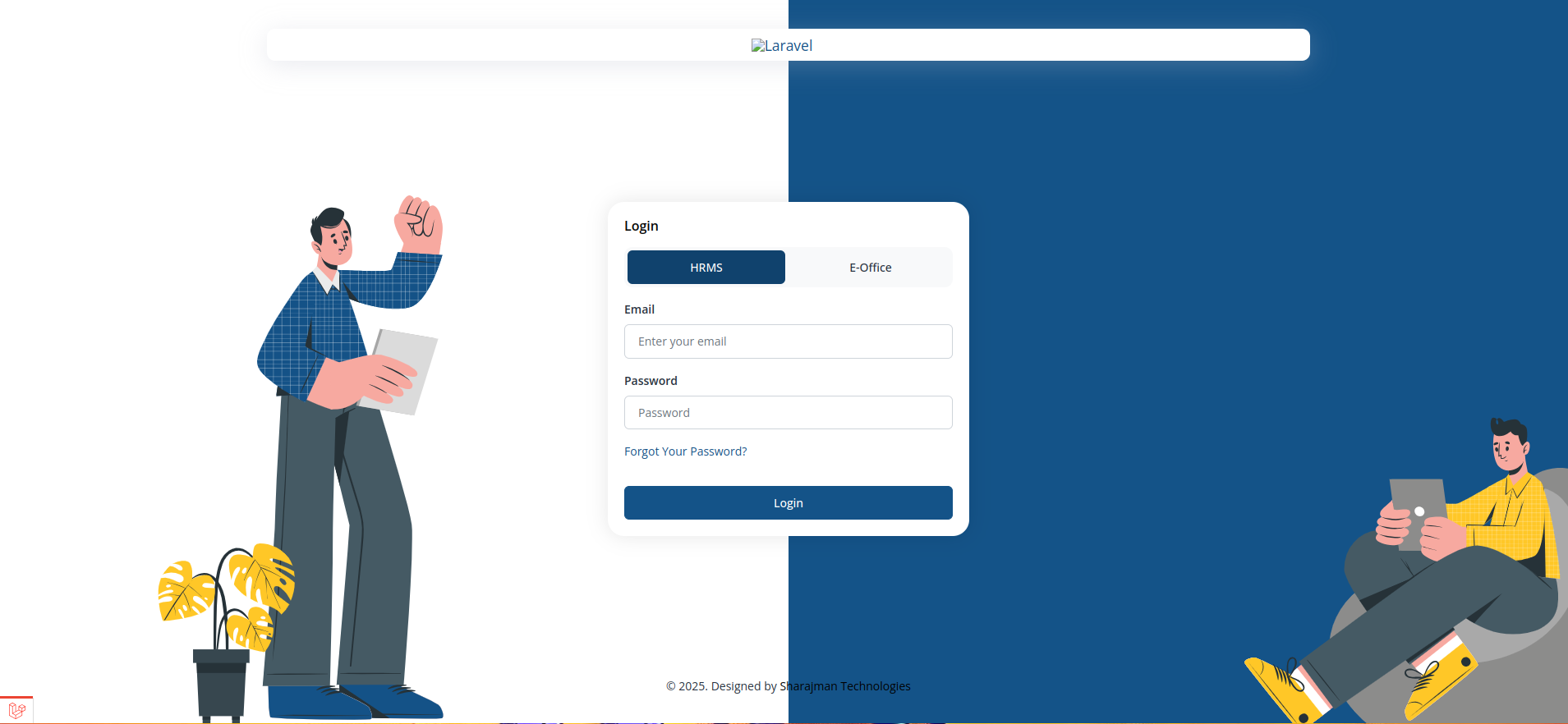
- Switch between HRMS and E-Office using the toggle at the top of the form before signing in.
- Enter your registered email address and password to log in.
- Use "Forgot Your Password?" to receive a password reset link by email.
- A security check (CAPTCHA) may appear before the Login button becomes active, depending on your organisation's settings.
- Select HRMS or E-Office using the toggle.
- Enter your email and password.
- Complete the security check if shown.
- Click Login.
Dashboard
Your home screen after login. Gives a Finance a quick summary of what needs attention today.
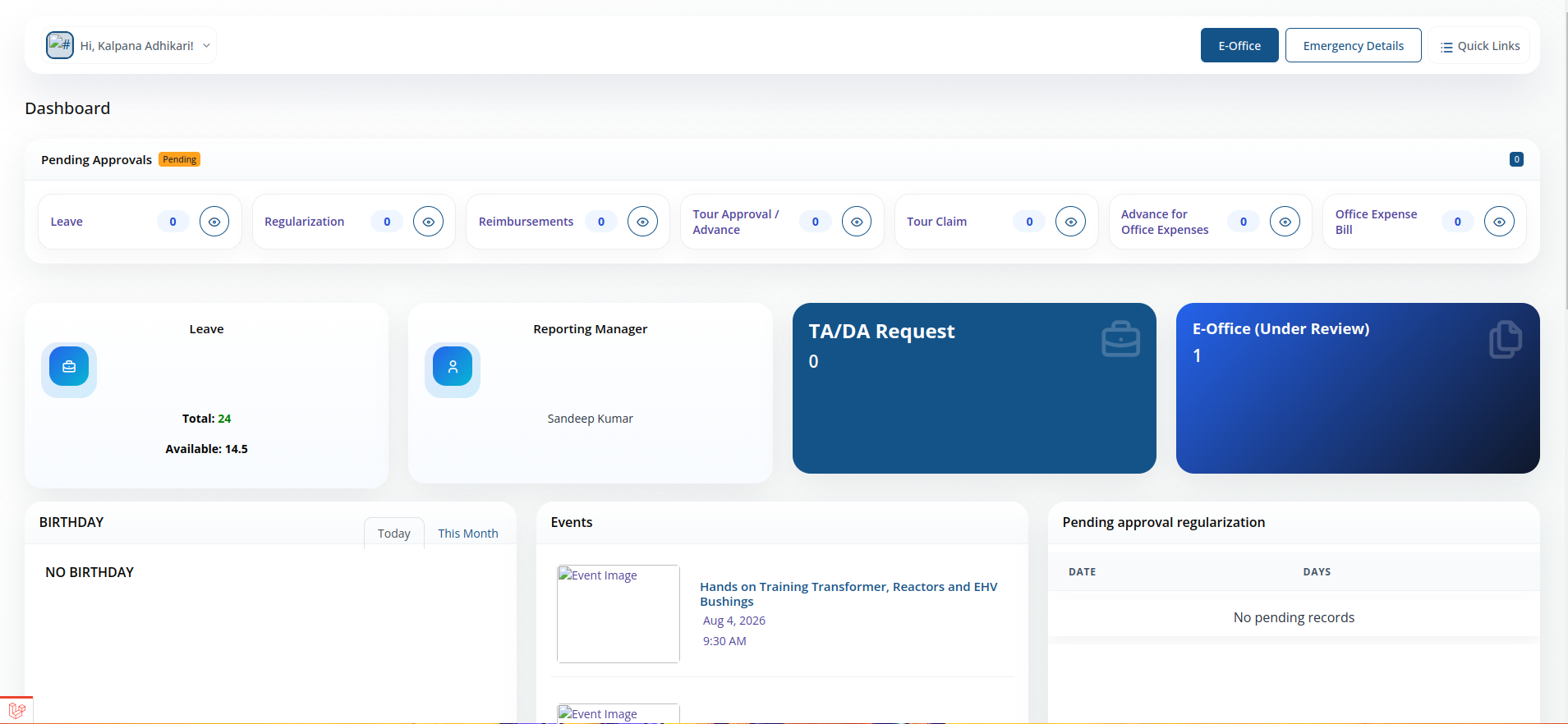
- Greeting & profile menu — "Hi, [Name]!" with a dropdown in the top-left.
- Module toggle — switch between HRMS and E-Office from the top bar.
- Emergency Details and Quick Links — quick-access buttons in the top bar.
- Pending Approvals summary row — live counts for Leave, Regularization, Reimbursements, Tour Approval/Advance, Tour Claim, Advance for Office Expenses, and Office Expense Bill, each with a view icon to jump straight to that list.
- Leave card — total leave and currently available balance.
- Reporting Manager card — shows who your requests get routed to for approval.
- TA/DA Request tile — count of open tour advance/claim requests.
- E-Office (Under Review) tile — count of documents currently under review.
- Birthday panel — Today / This Month toggle showing colleagues birthdays.
- Events panel — upcoming trainings/company events with image, title, date and time.
- Pending approval regularization table — attendance regularization requests awaiting approval, by date and number of days.
- Training Calendar — Month / Week / Day calendar view of scheduled trainings, with prev/next navigation.
- What's New — downloadable circulars, office orders and notices, each with a validity date range.
- Upcoming Holidays — list of holidays with their dates.
Emergency Details
Quick-access panel above the main menu.
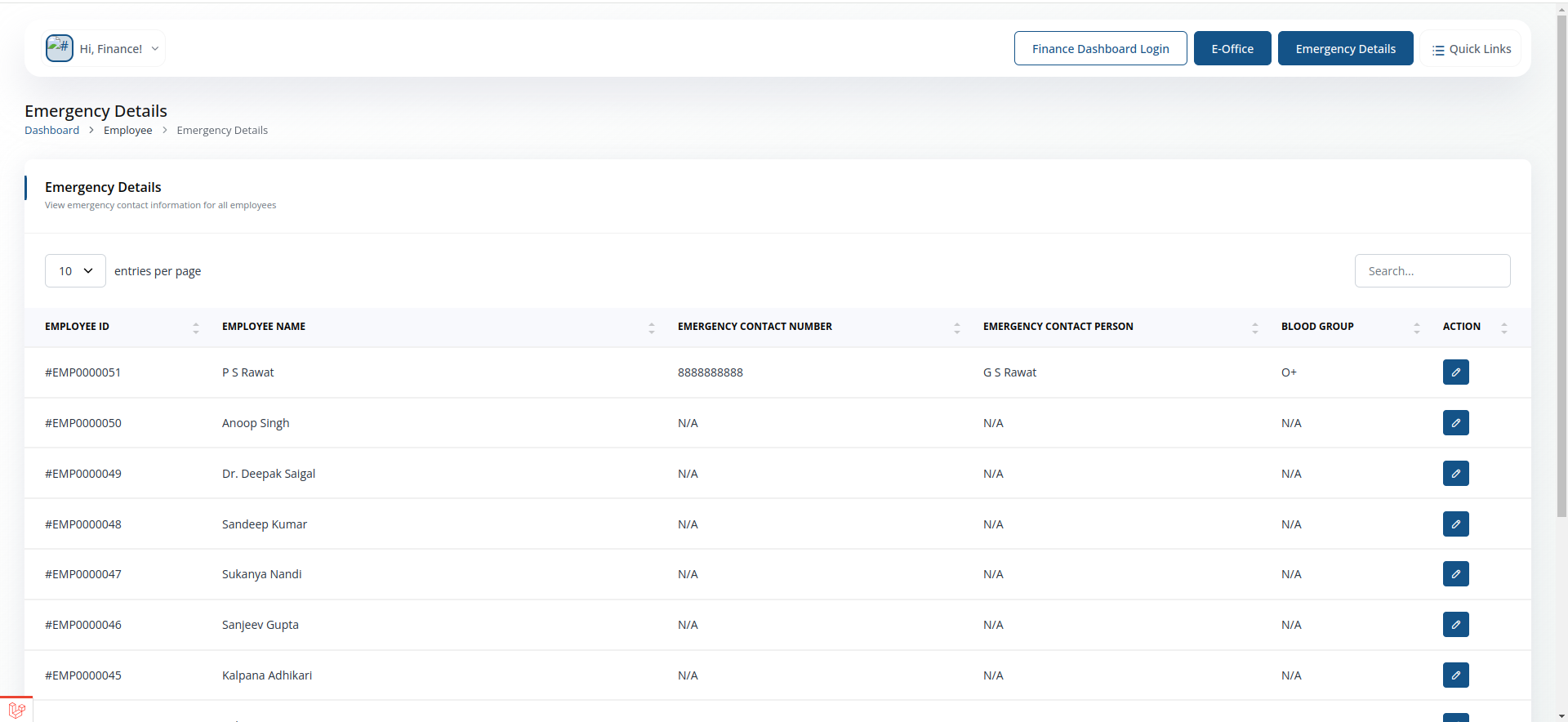
- View emergency contact numbers and key personnel for urgent situations.
Quick Links
Shortcut panel above the main menu.
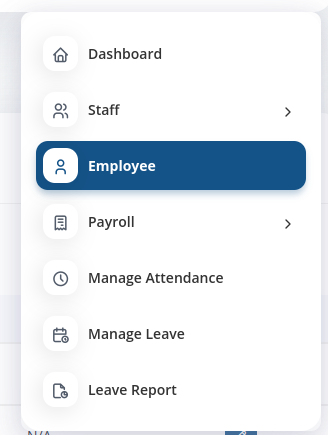
- Jump straight to frequently used pages without navigating the full menu.
Staff
Look up any employee's record.
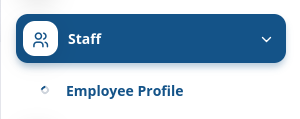
Employee Profile
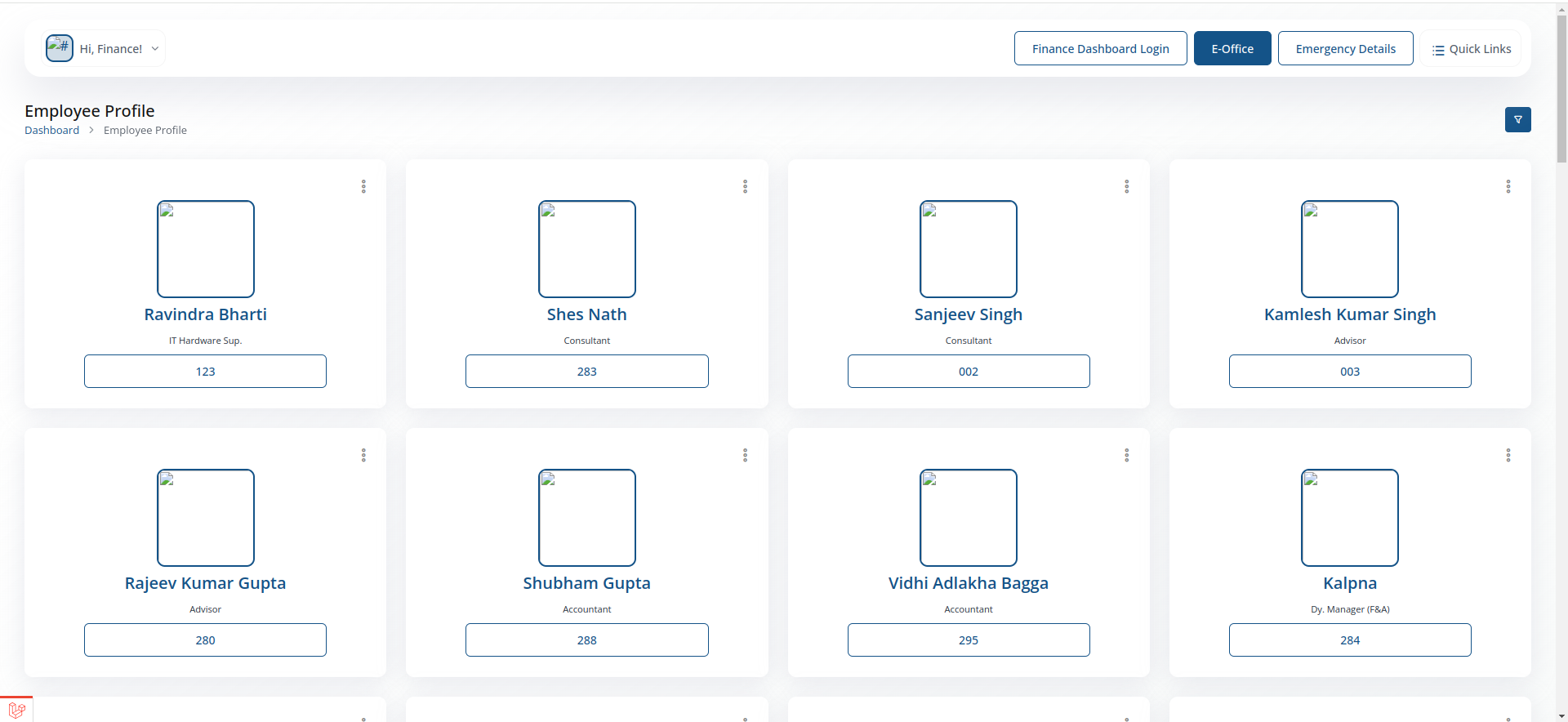
- Search and open any staff member's profile to view their details for payroll processing.
Employee
Your own employee record.
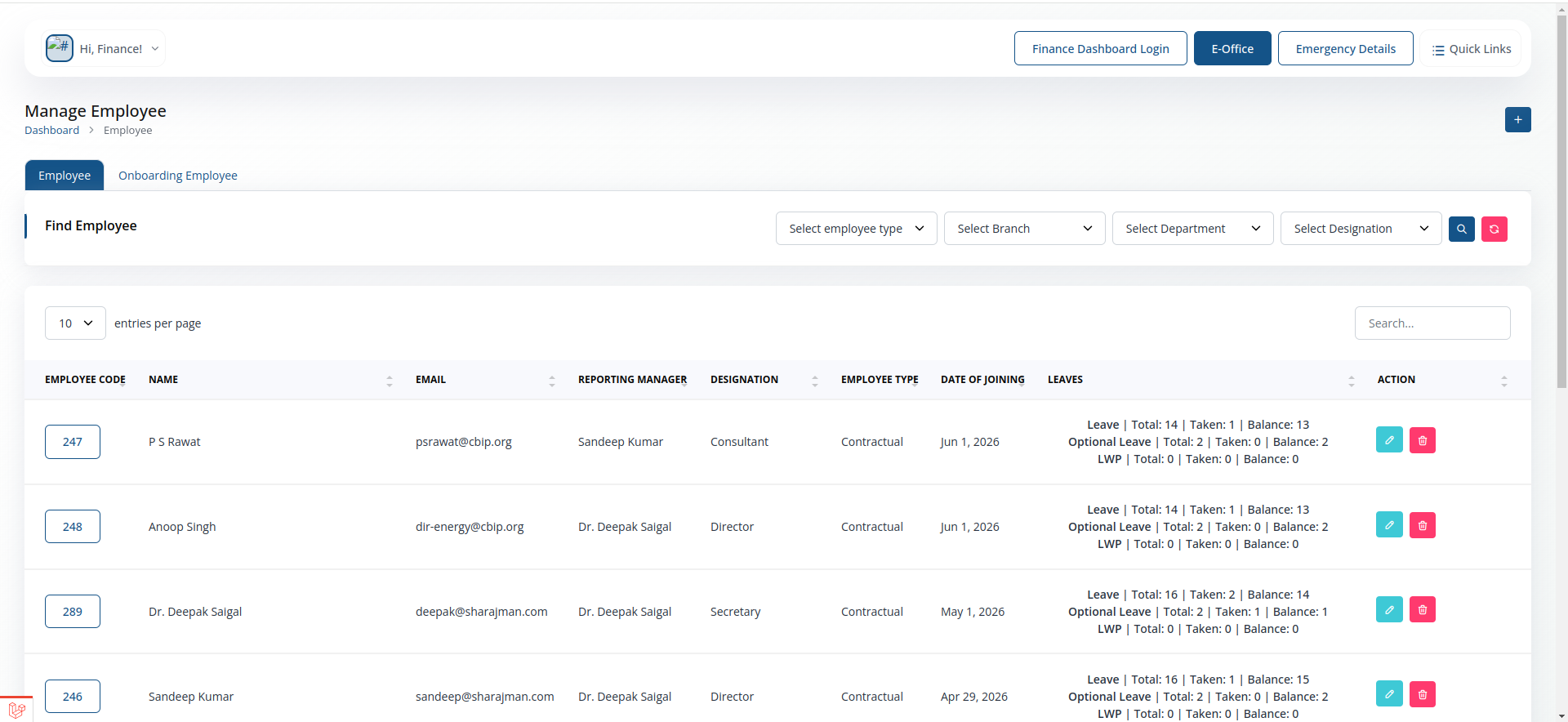
- View employees details.
- Filter employees by name,department, designation, and branch.
Employee
- View employees details.
- Filter employees by name,department, designation, and branch.
Onboarding Employee
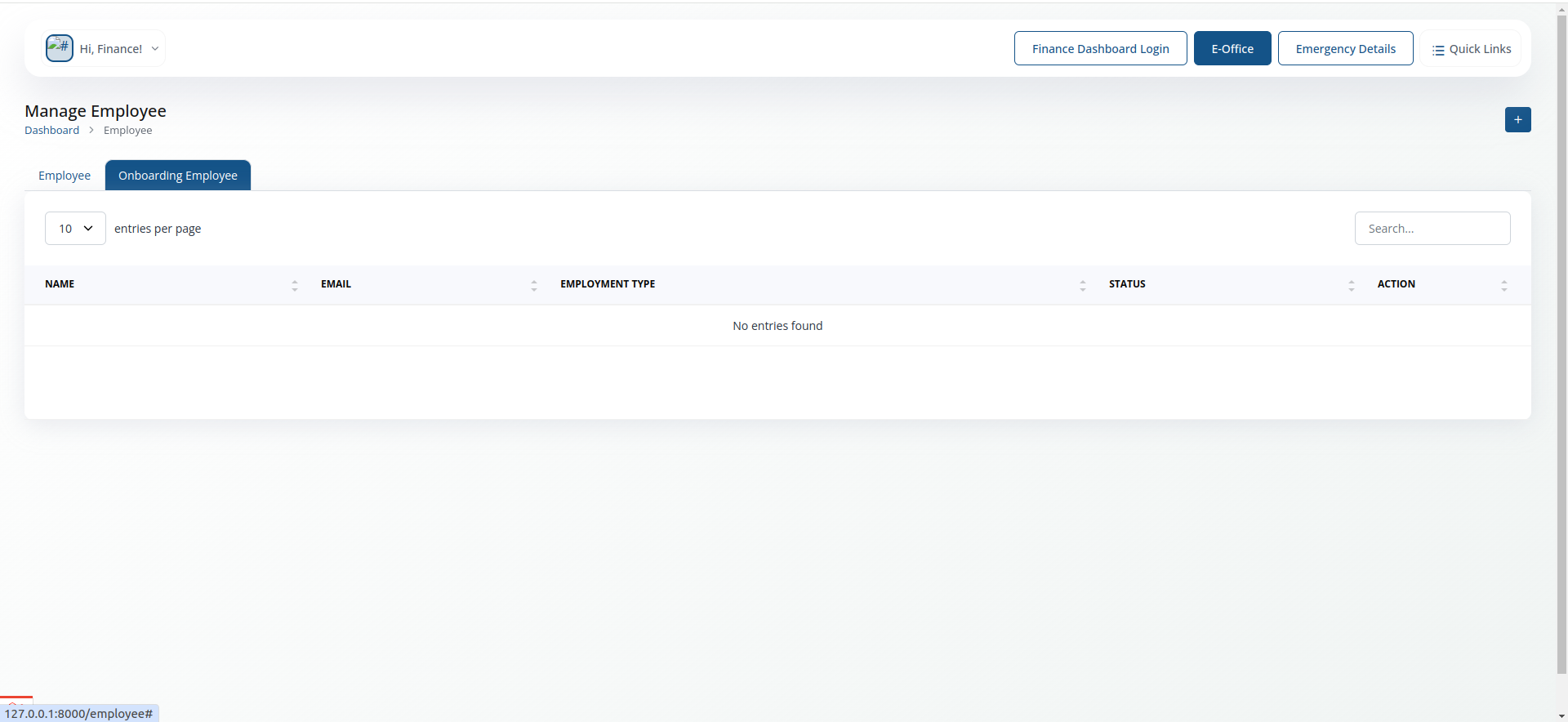
- Can add new employee to the system.
- Fill in the required details and submit the form to onboard a new employee.
Payroll
Full payroll processing toolkit — the core of the Finance role.
Placeholder — replace with a real screenshot
Set Salary
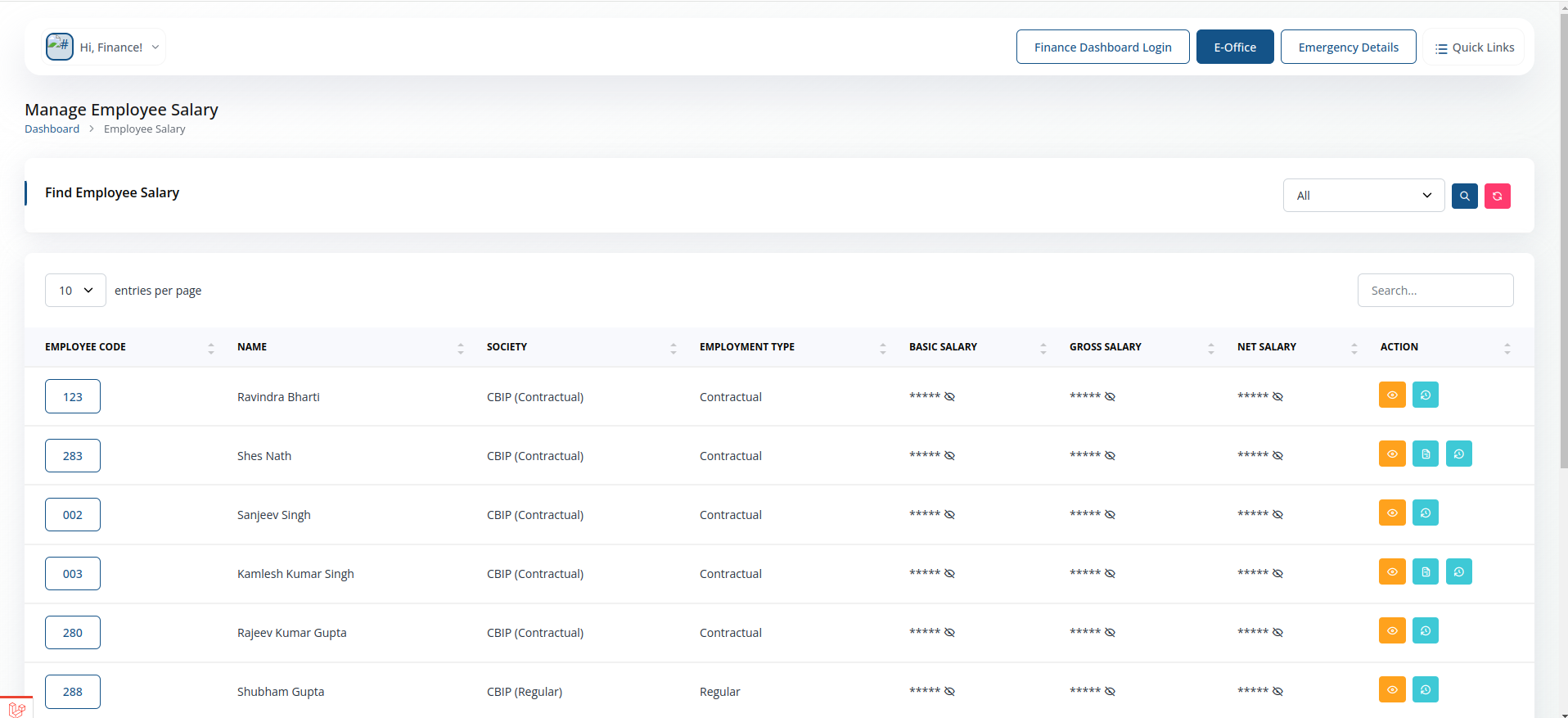
- Define or update an employee's salary structure.
Adjustment Salary
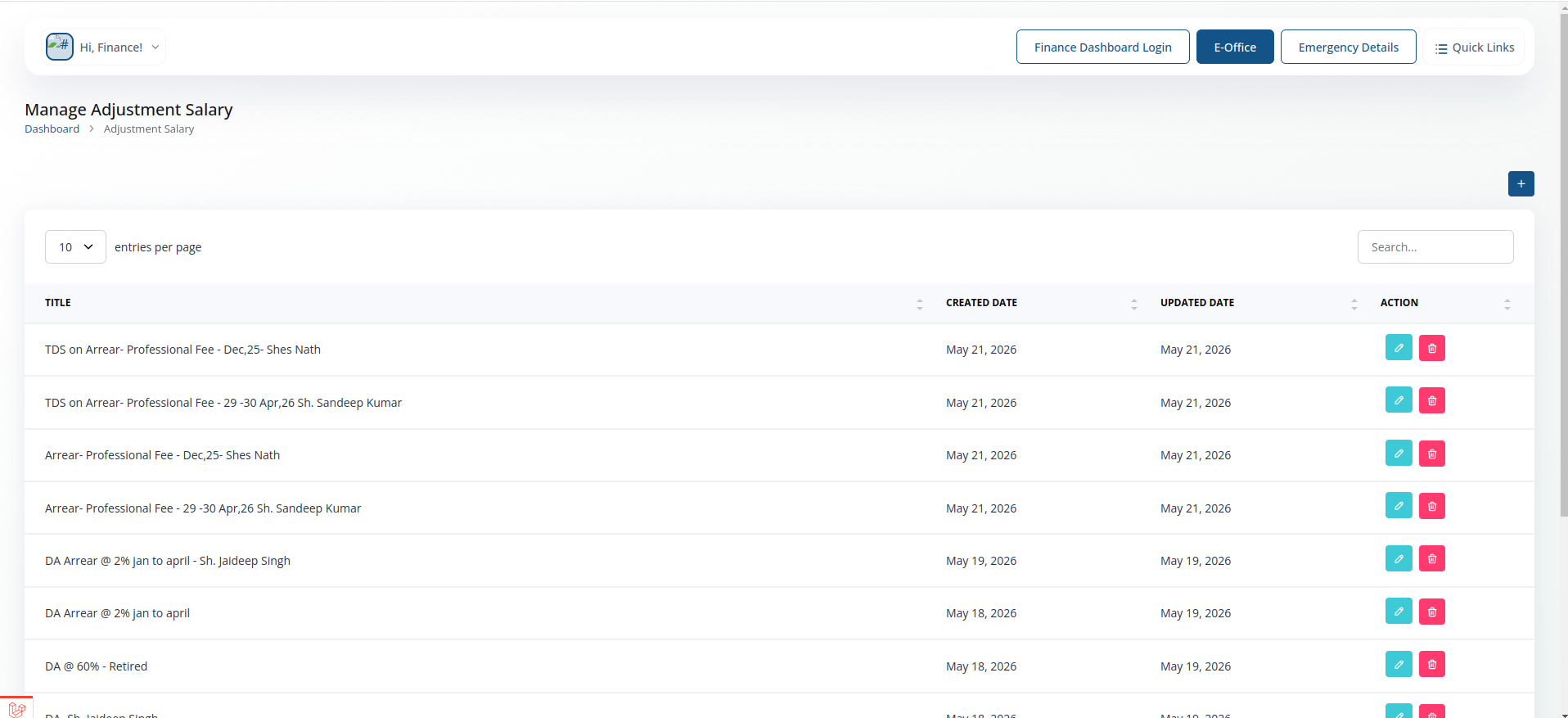
- Make one-off adjustments to an employee's salary for a specific period.
Payslip
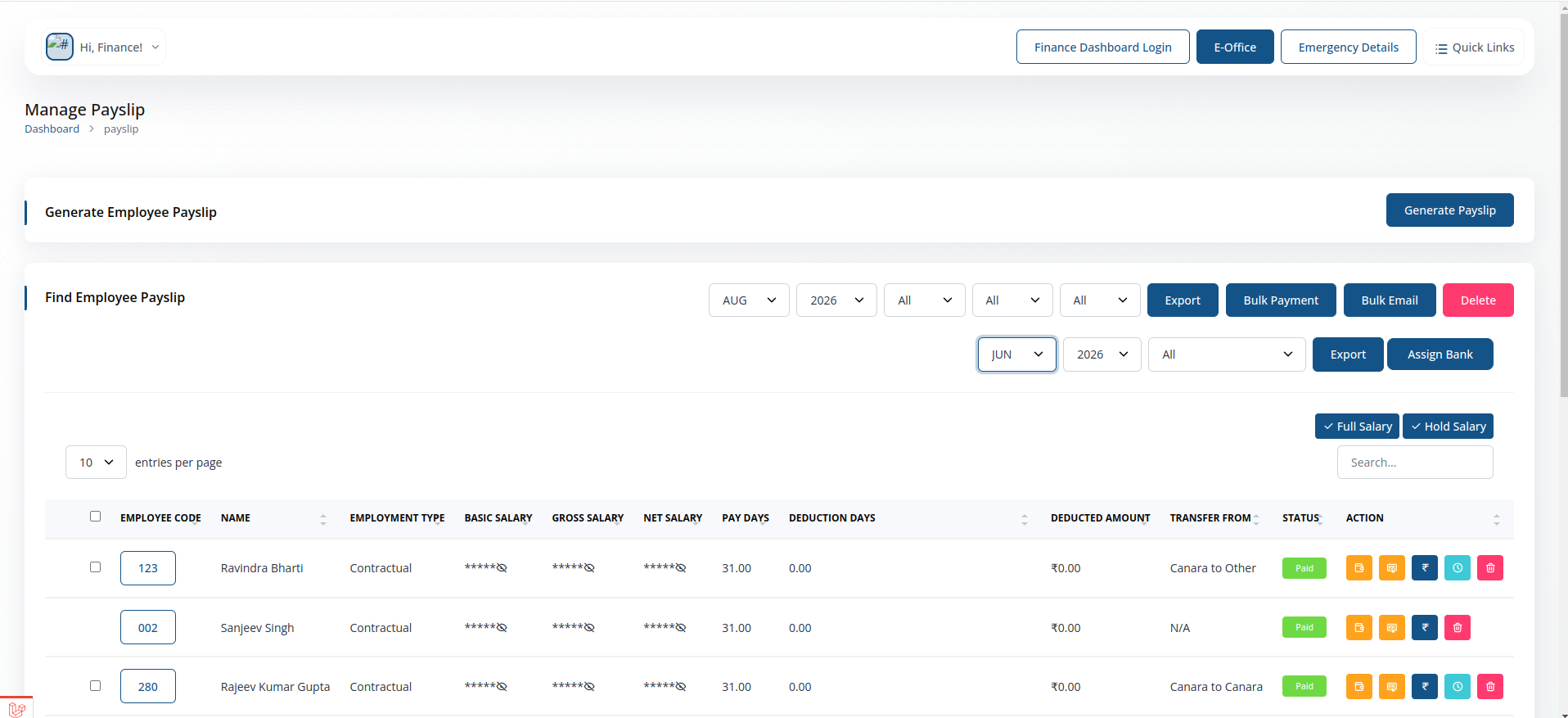
- Generate and view payslips for any employee.
Performa
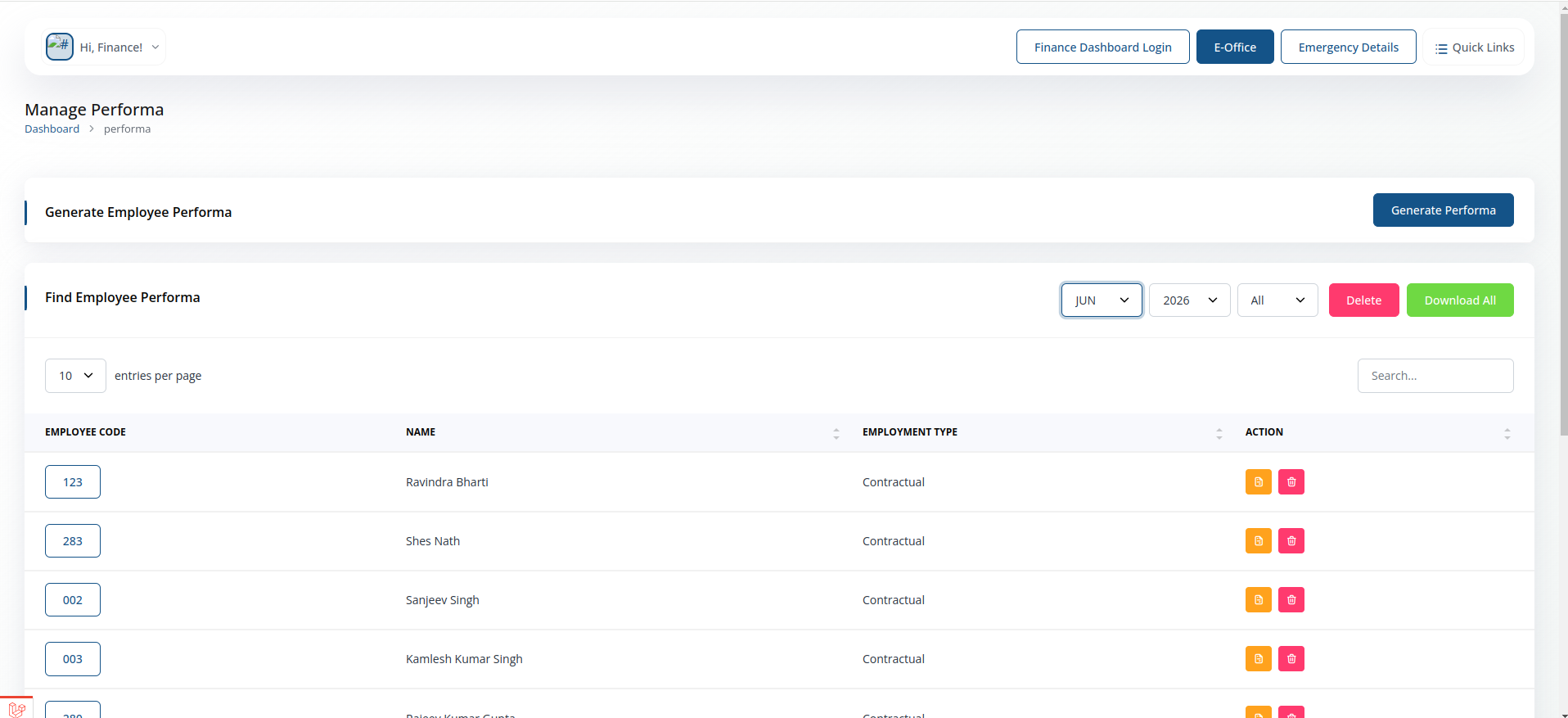
- Review and process salary performas submitted for approval.
Self Generated Performa
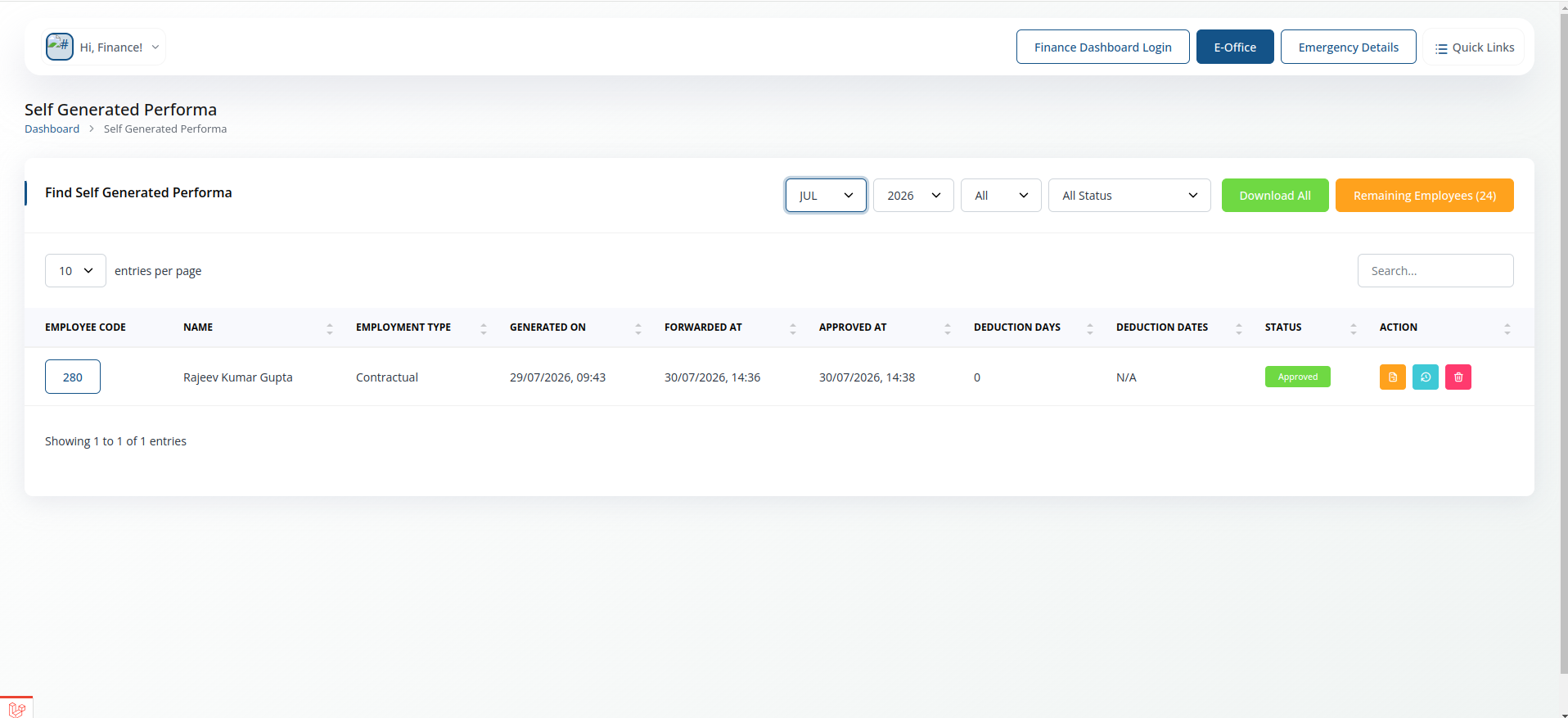
- Generate a performa directly without waiting on an employee submission.
Unhold Salary
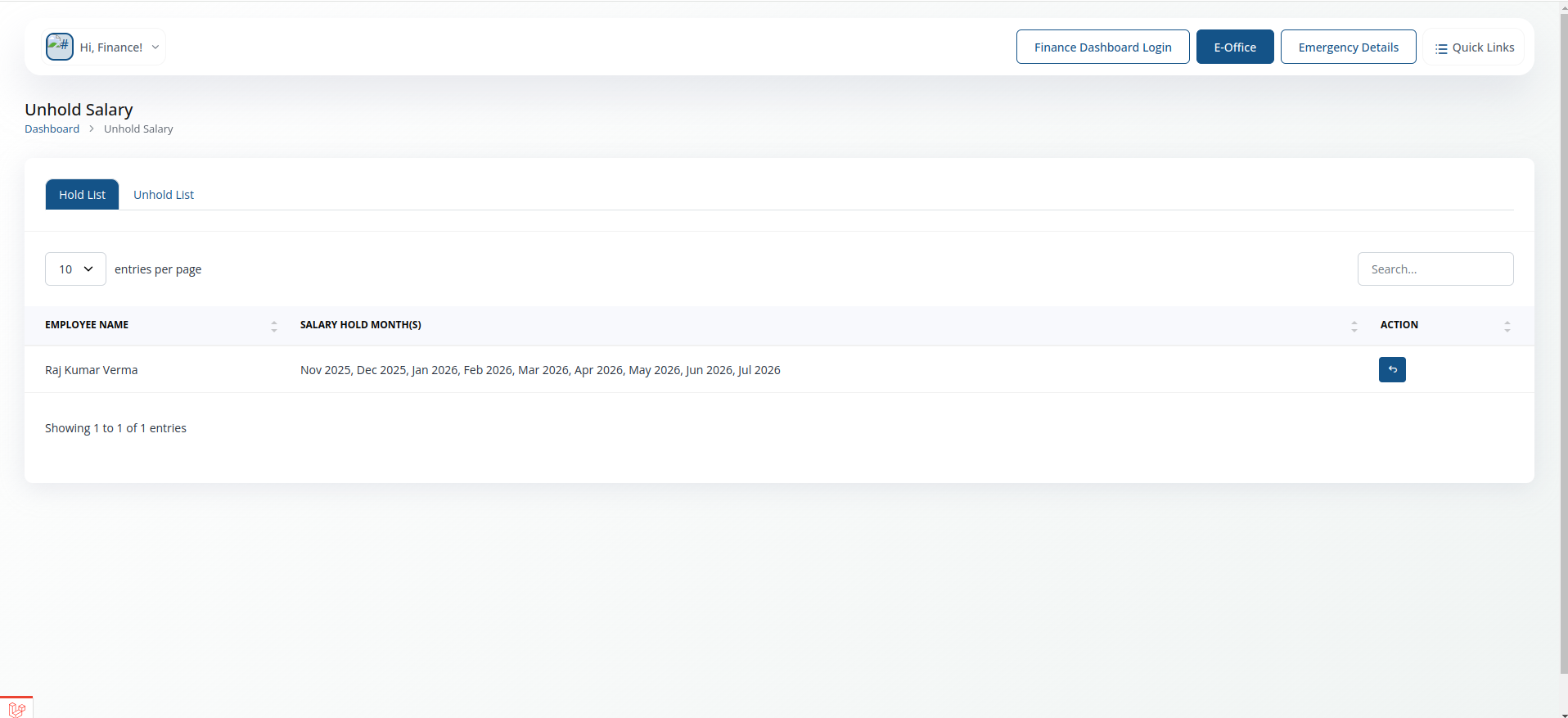
- Release a salary that was previously placed on hold.
Report
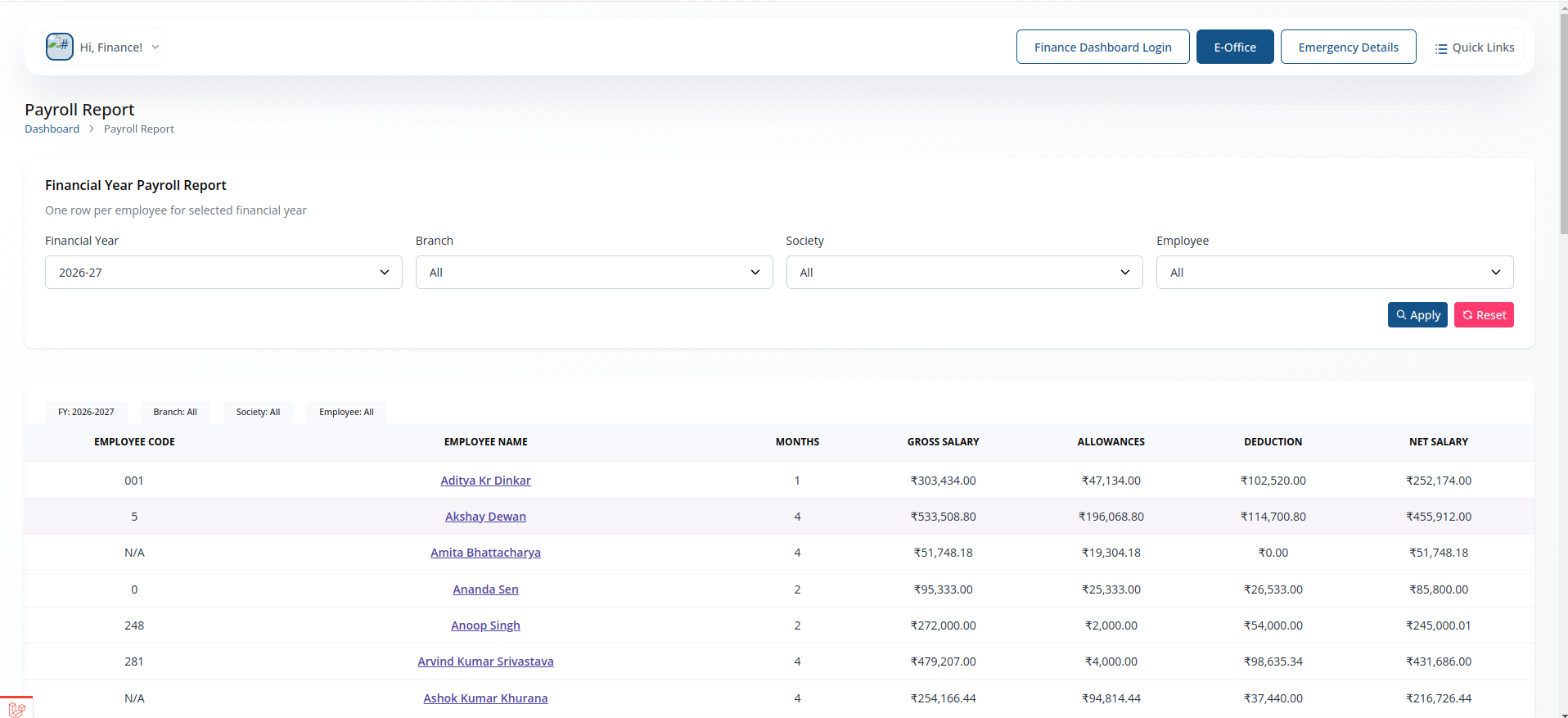
- Run payroll reports across employees, departments or pay periods.
Manage Attendance
Review attendance data feeding into payroll.
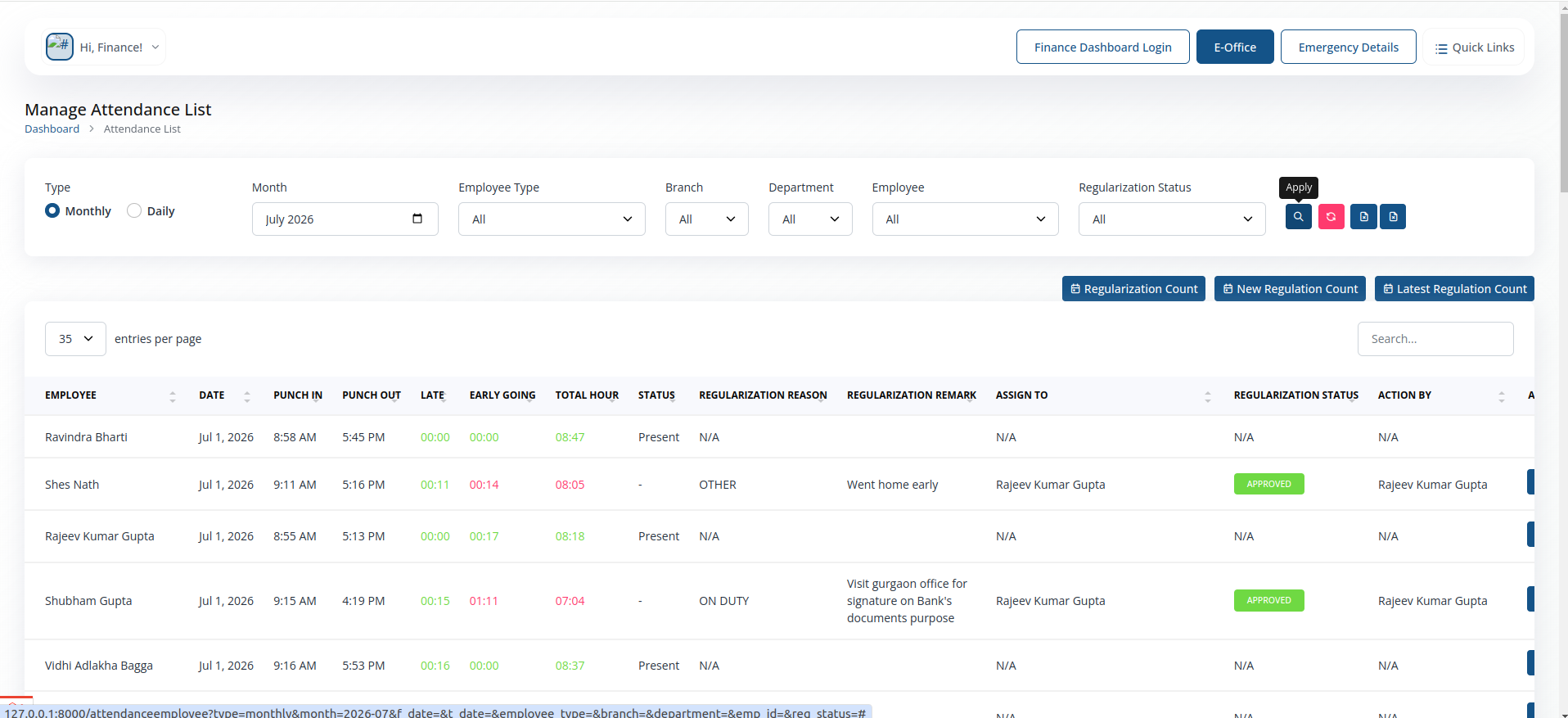
- Check attendance records used for salary and deduction calculations.
Manage Leave
Your own leave application and tracking.
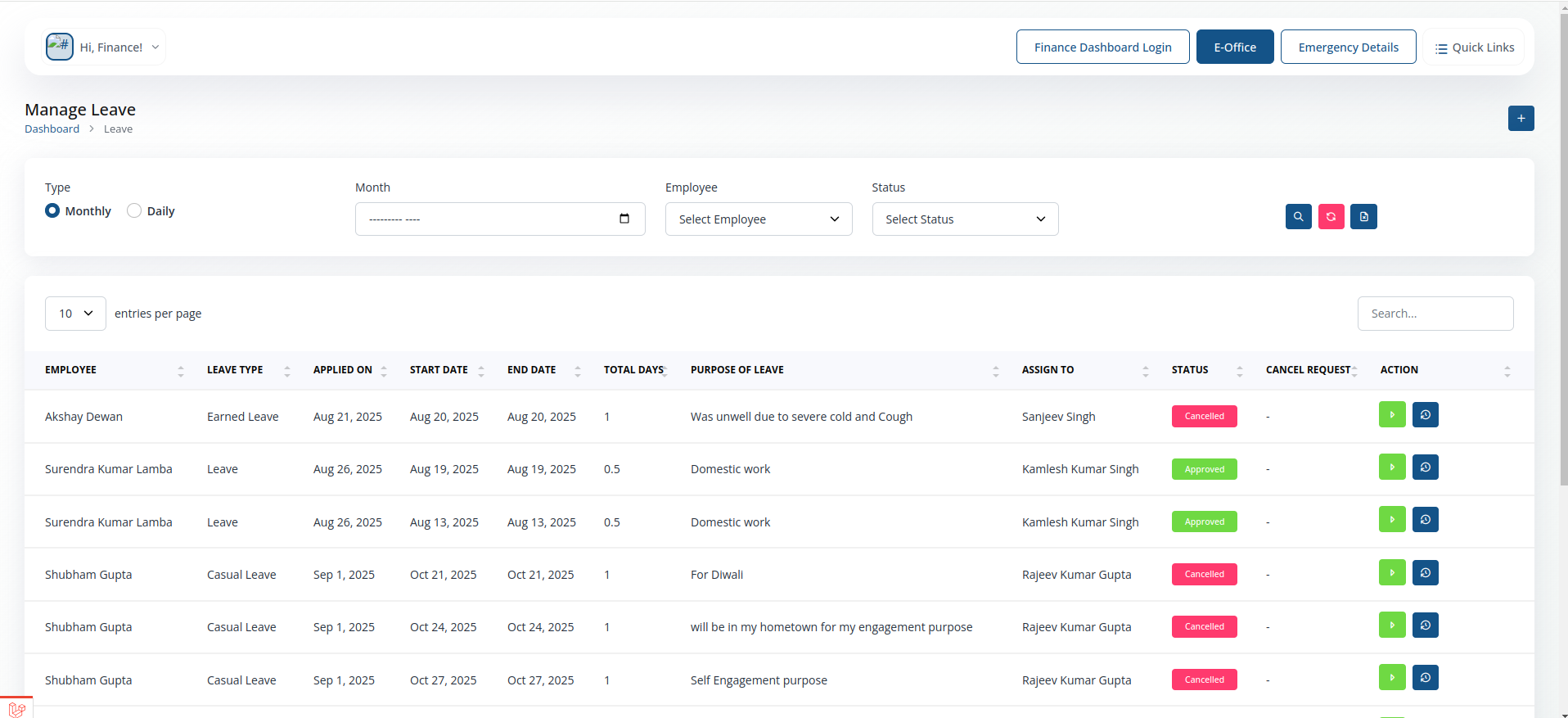
- Apply for leave and track its approval status, same as any employee.
Leave Report
Leave history, relevant to leave-encashment and payroll deductions.
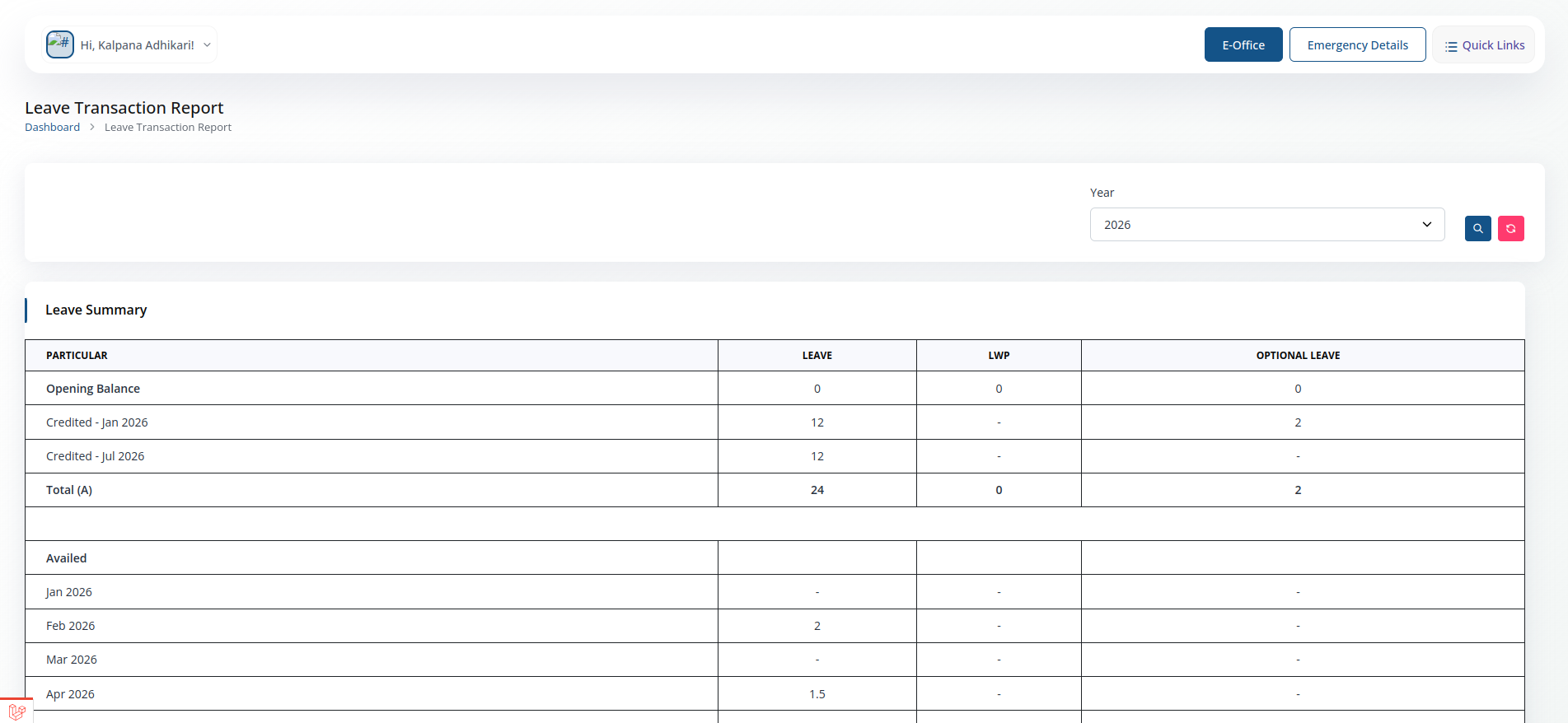
- Filter leave history by type and date range.