Normal Employee Guide
Everything you can do, screen by screen, starting from login.
Login
The entry point to the system. Choose your module, then sign in with your email and password.
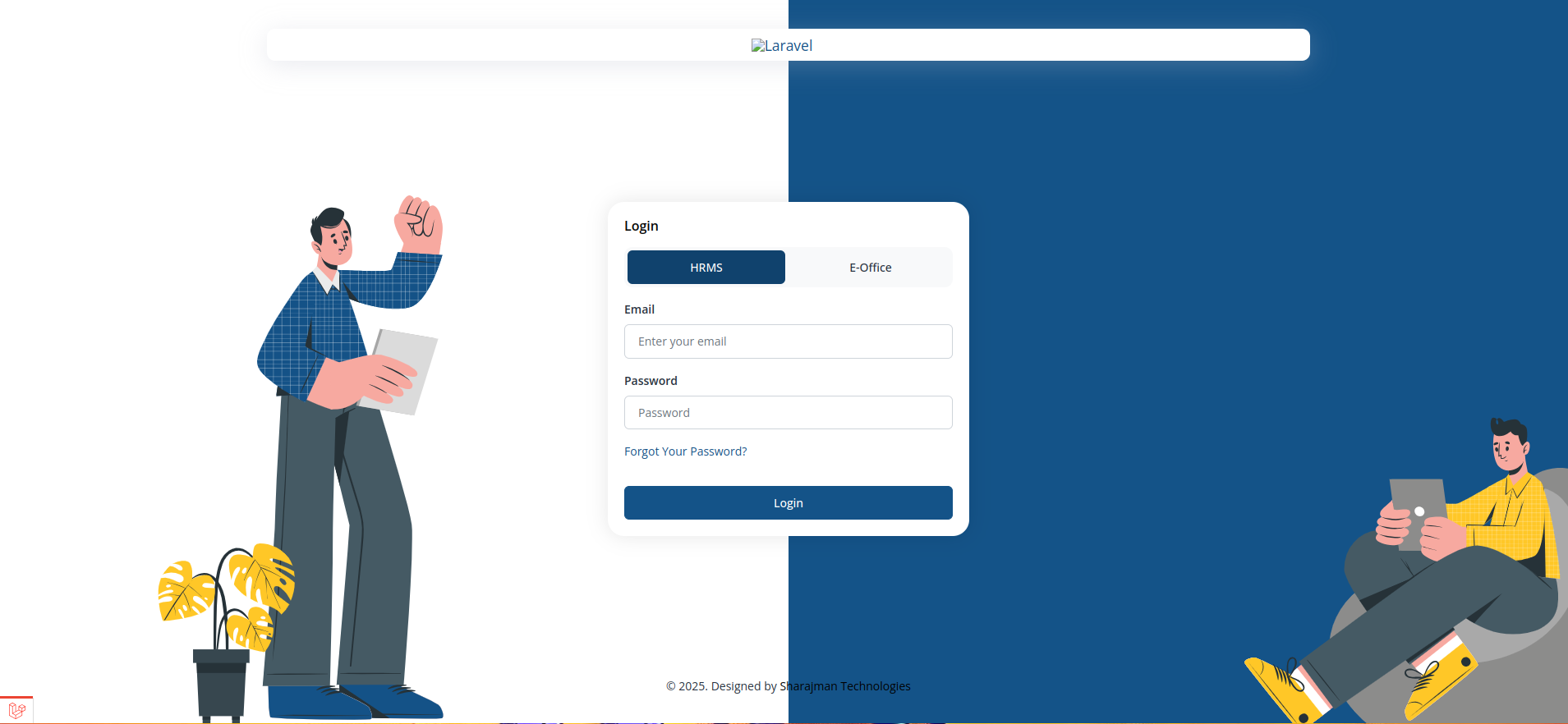
- Switch between HRMS and E-Office using the toggle at the top of the form before signing in.
- Enter your registered email address and password to log in.
- Use "Forgot Your Password?" to receive a password reset link by email.
- A security check (CAPTCHA) may appear before the Login button becomes active, depending on your organisation's settings.
- Select HRMS or E-Office using the toggle.
- Enter your email and password.
- Complete the security check if shown.
- Click Login.
Dashboard
Your home screen after login. Gives a Normal Employee a quick summary of what needs attention today.
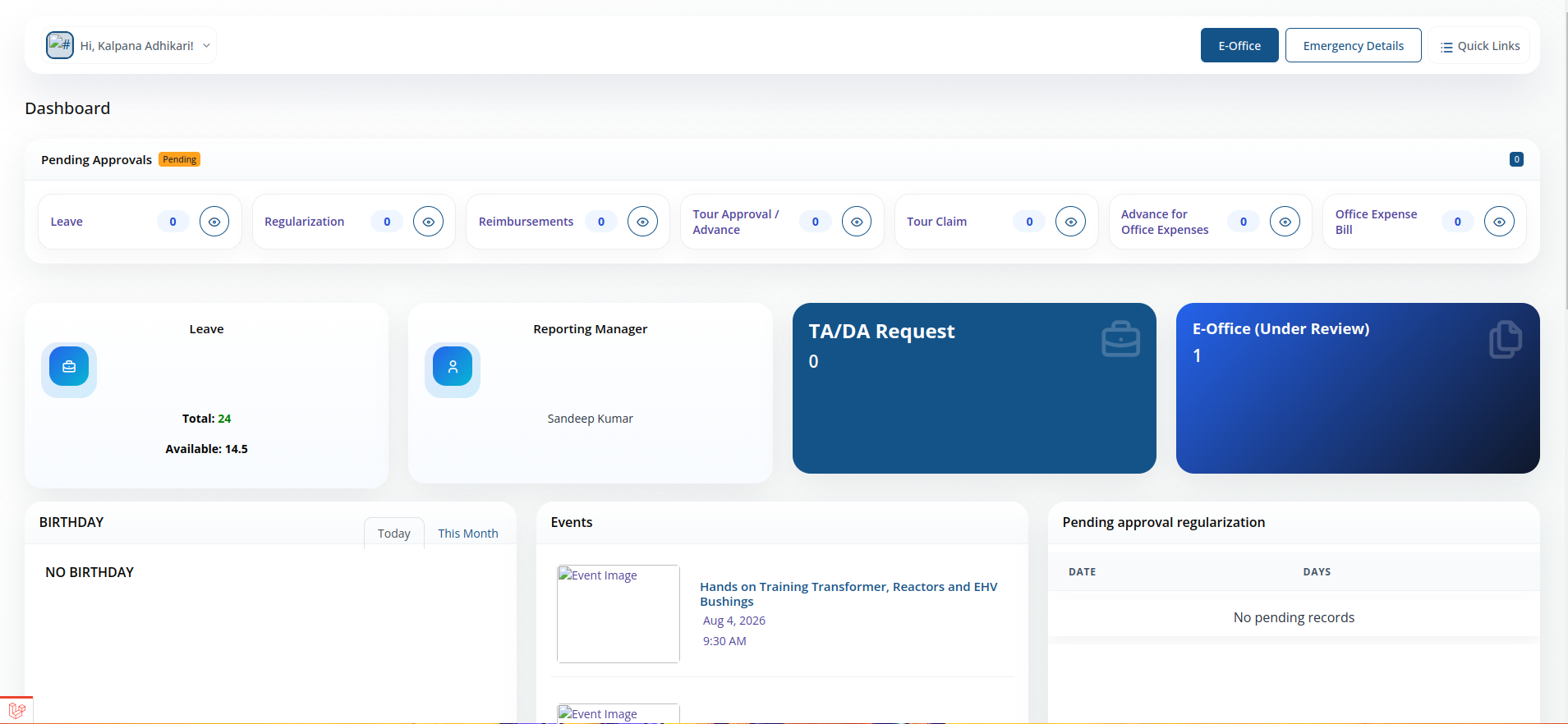
- Greeting & profile menu — "Hi, [Name]!" with a dropdown in the top-left.
- Module toggle — switch between HRMS and E-Office from the top bar.
- Emergency Details and Quick Links — quick-access buttons in the top bar.
- Pending Approvals summary row — live counts for Leave, Regularization, Reimbursements, Tour Approval/Advance, Tour Claim, Advance for Office Expenses, and Office Expense Bill, each with a view icon to jump straight to that list.
- Leave card — total leave and currently available balance.
- Reporting Manager card — shows who your requests get routed to for approval.
- TA/DA Request tile — count of open tour advance/claim requests.
- E-Office (Under Review) tile — count of documents currently under review.
- Birthday panel — Today / This Month toggle showing colleagues birthdays.
- Events panel — upcoming trainings/company events with image, title, date and time.
- Pending approval regularization table — attendance regularization requests awaiting approval, by date and number of days.
- Training Calendar — Month / Week / Day calendar view of scheduled trainings, with prev/next navigation.
- What's New — downloadable circulars, office orders and notices, each with a validity date range.
- Upcoming Holidays — list of holidays with their dates.
Employee
Your personal employee record.
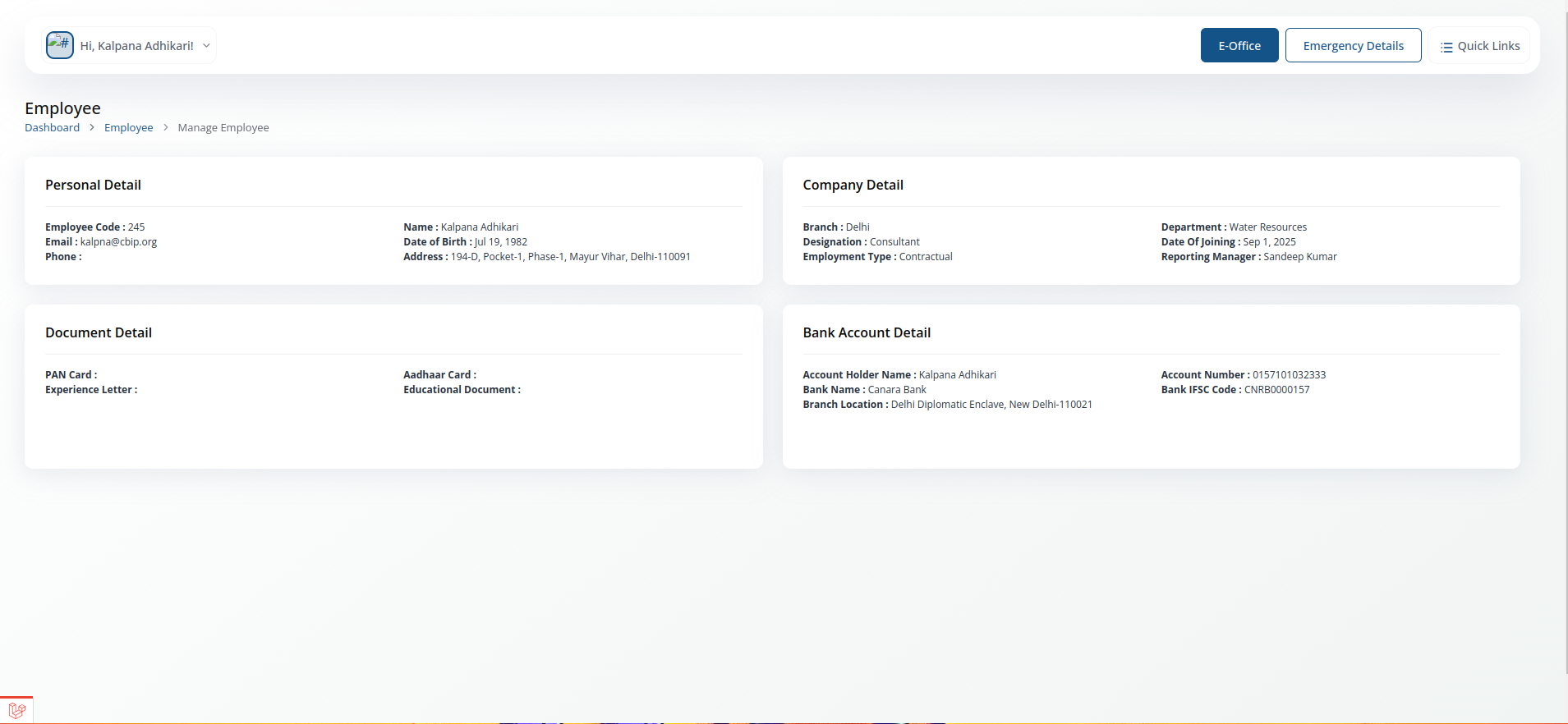
- View your employee ID, department, designation and joining date.
- Check the contact and bank details your organisation has on file.
Payroll
Everything related to your salary.
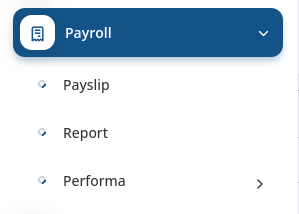
Payslip
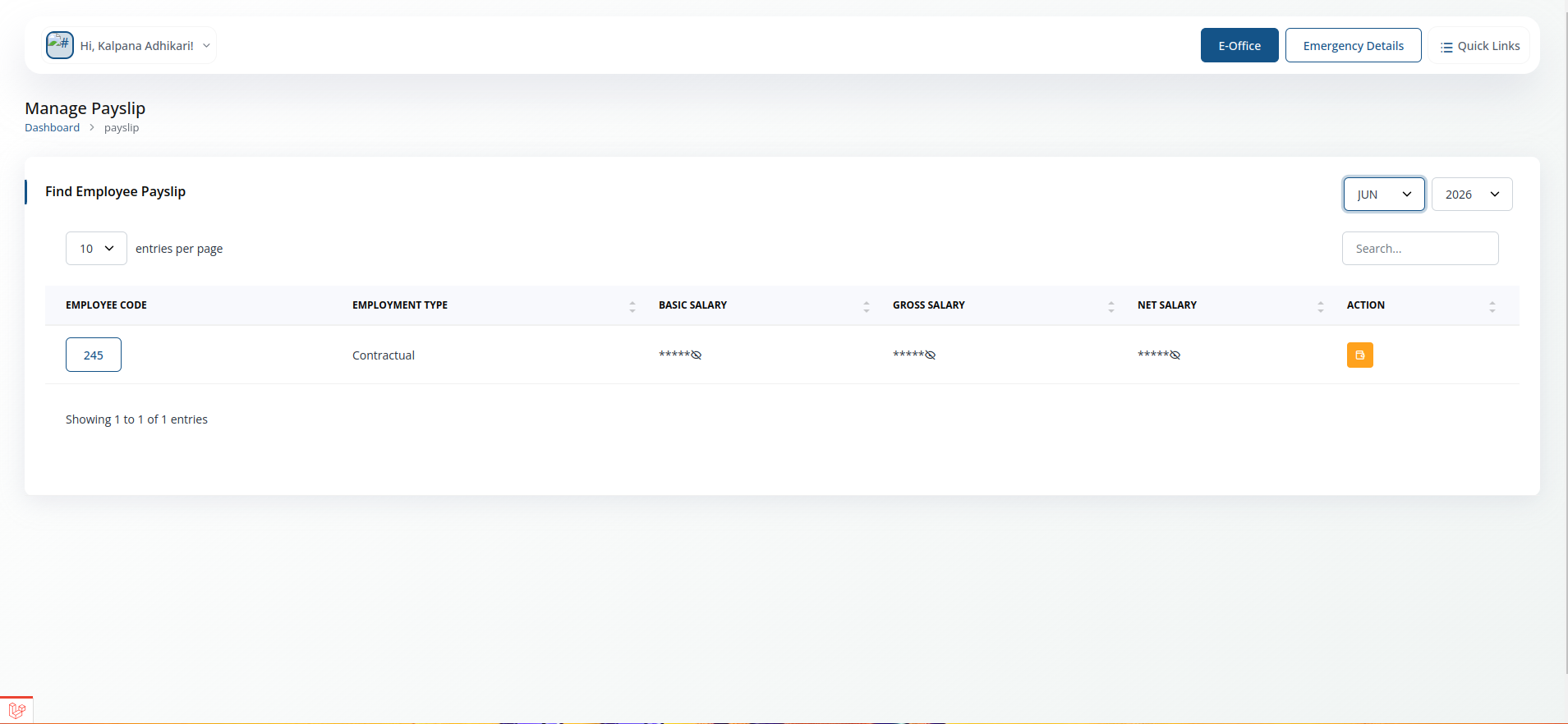
- Download or view your monthly payslip, broken down by earnings and deductions.
Report
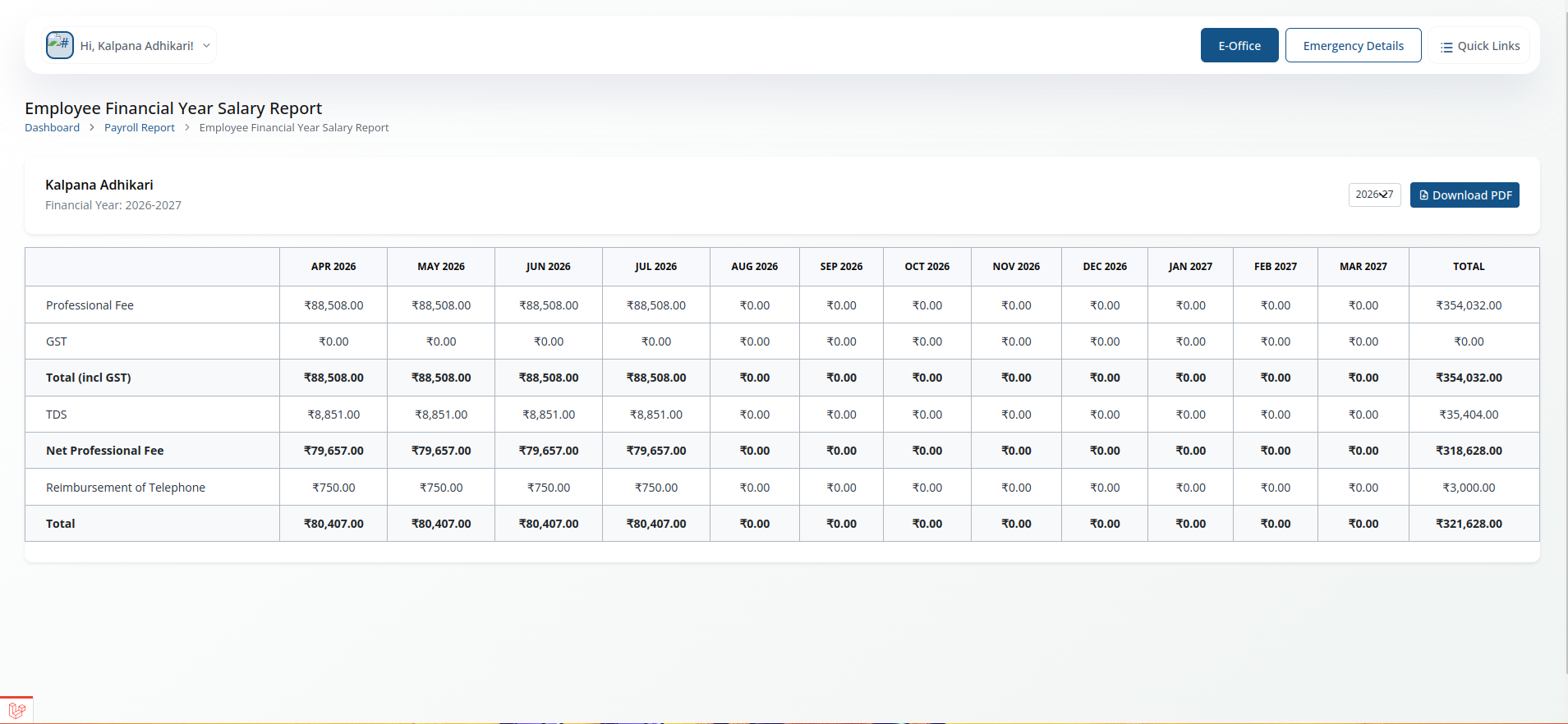
- View payroll reports for past periods.
Performa
Placeholder — replace with a real screenshot
- Has two views: Self (your own submissions) and For Approval (items waiting on you, if you are a reporting manager).
Performa ->Self
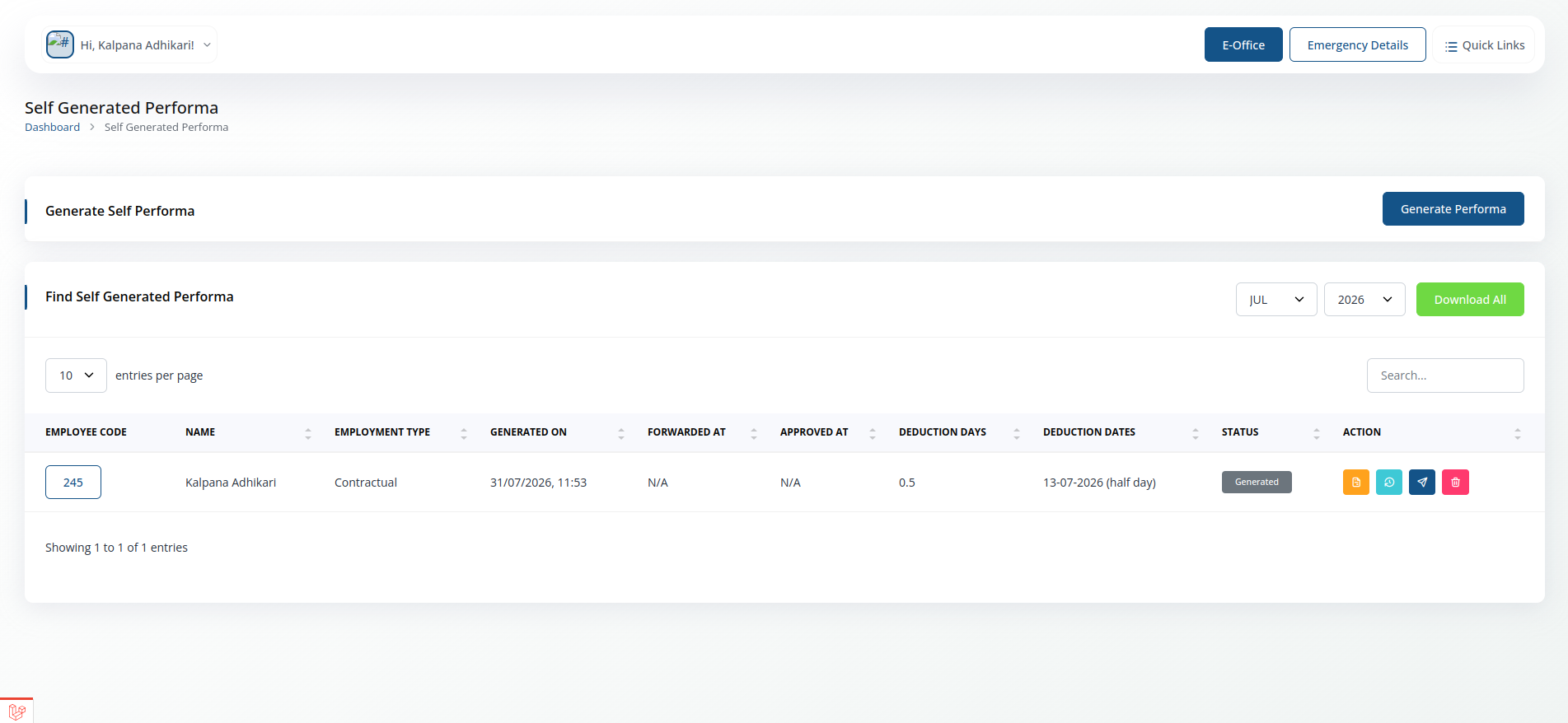
- Generate self performa for the month.
- To Generate performa, select month and year and click on generate button.
- To download performa, click on download button.
- To view performa, click on view button.
- To see log of performa, click on log button.
- To forwoard performa, click on forward button.
Performa ->For Approval
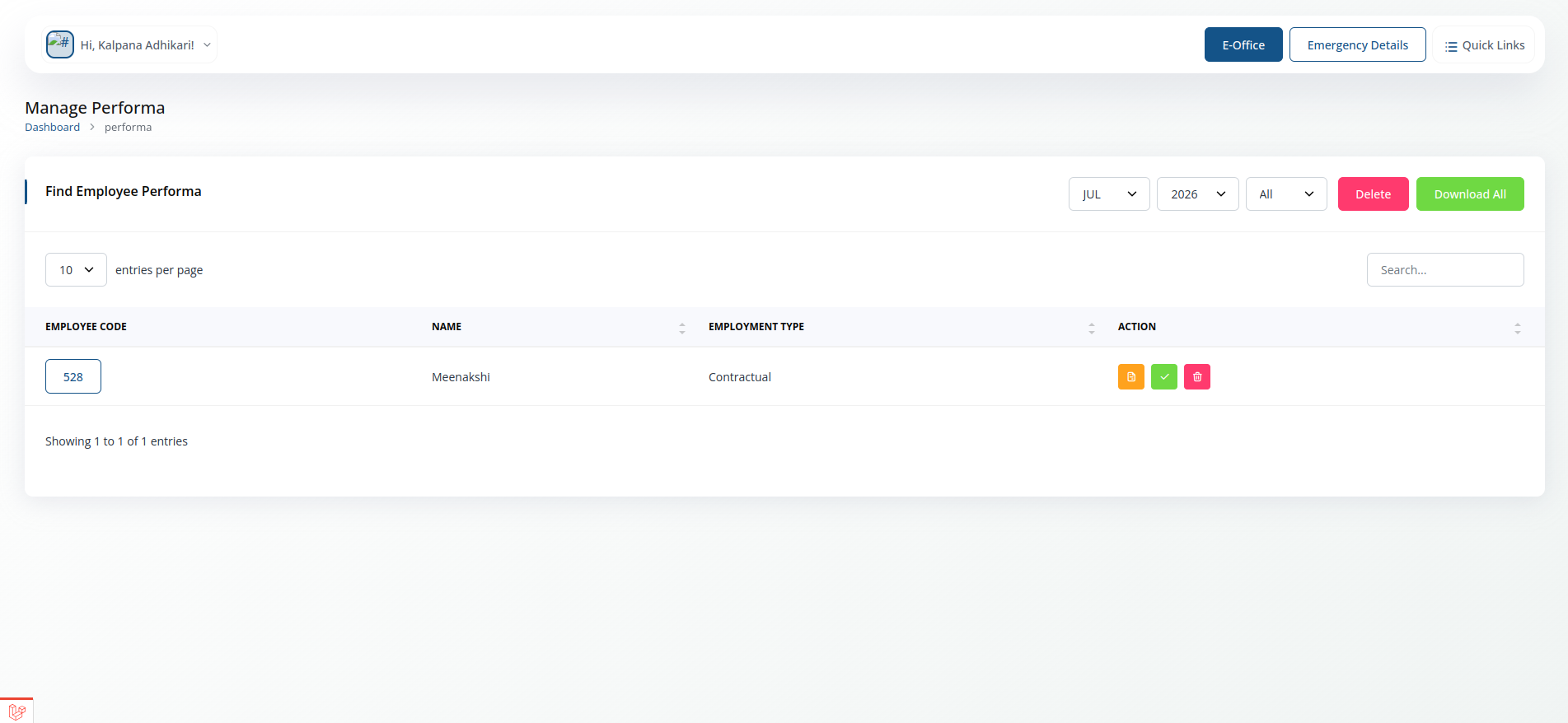
- Filter performas by month, year, and employment type before reviewing.
- Search for a specific employee by name or employee code.
- View each employee's Employee Code, Name, and Employment Type in the list.
- View the performa document, approve it, or delete it using the action icons on each row.
- Delete or Download All performas for the selected filter in bulk.
- Choose how many entries are shown per page, with pagination showing "Showing X to Y of Z entries".
Manage Attendance
Your daily attendance record.
Placeholder — replace with a real screenshot
- View check-in / check-out times for each day.
- Spot missing punches or discrepancies that may need regularisation.
Manage Attendance ->Self
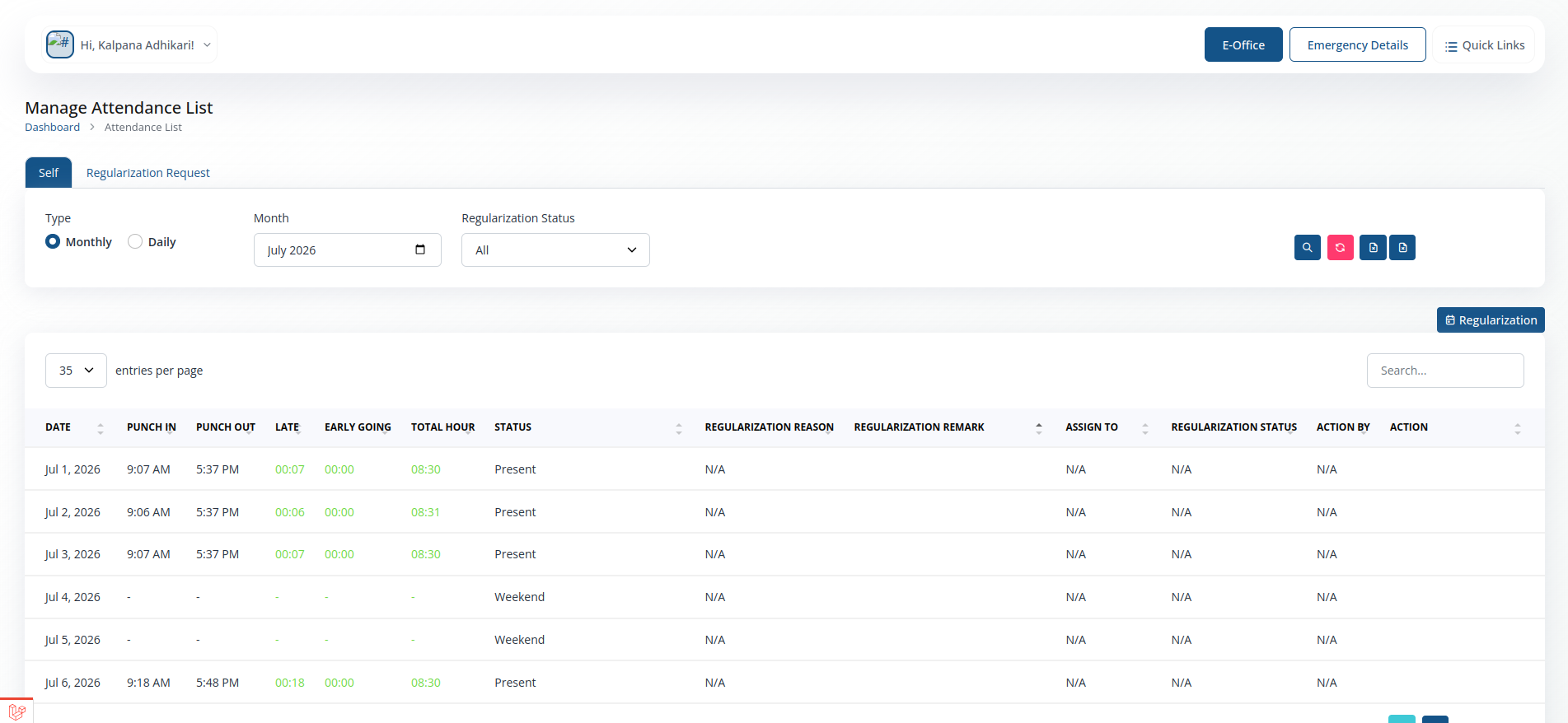
- View your attendance records for the current month.
- Filter attendance records by month and year.
- Add Regularization requests for any missing or incorrect attendance entries.
- View the status of your Regularization requests (Pending, Approved, or Rejected).
- Delete any pending Regularization requests if needed.
- Export your attendance records to Excel for offline review or record-keeping.
Manage Attendance ->Regulation Request
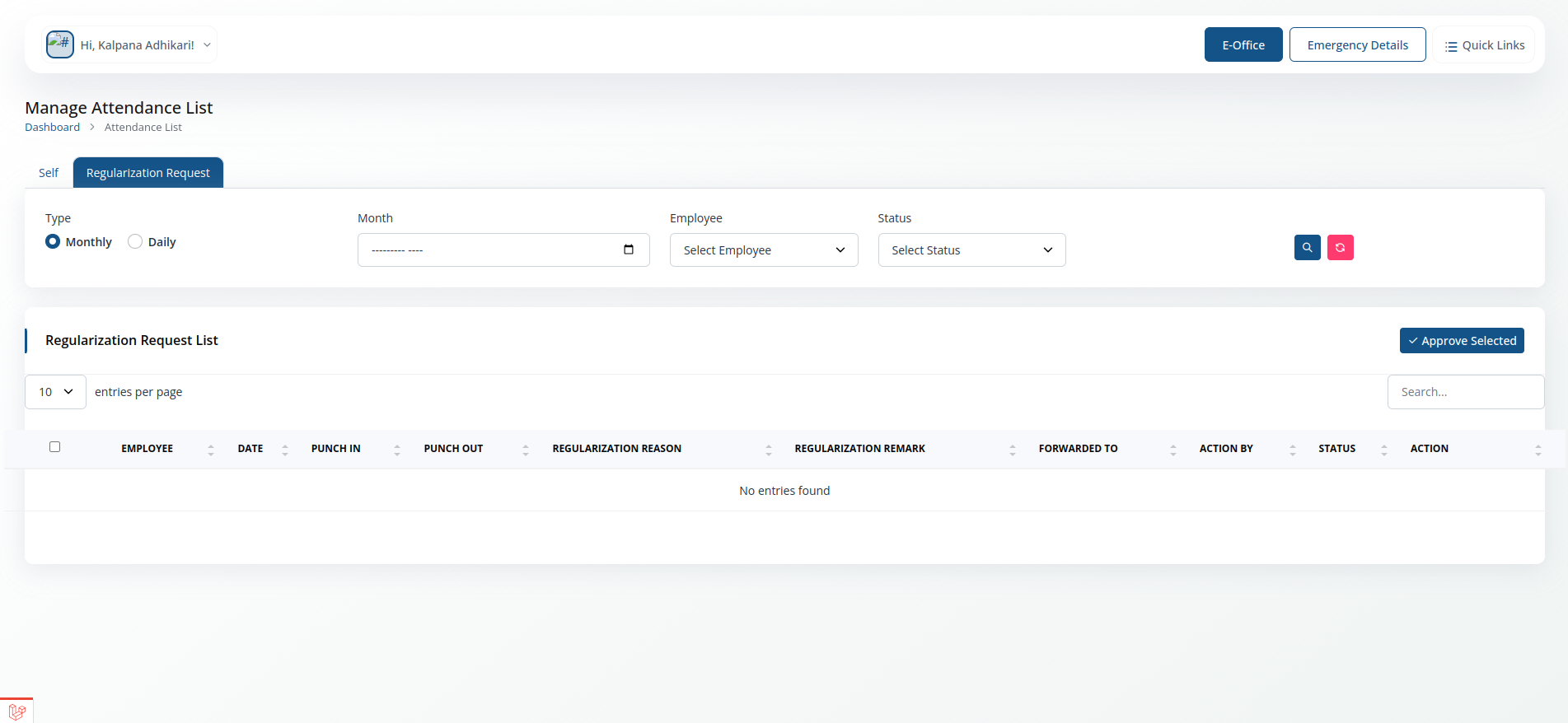
- Approve or reject Regularization requests submitted by employees.
- Filter requests by month, year, and employee name.
- View the details of each Regularization request, including the employee's name, date, and reason for the request.
- Approve or reject requests with a single click, and optionally provide comments for your decision.
- Export the list of Regularization requests to Excel for record-keeping or reporting
Manage Leave
Apply for and track leave.
- Apply for leave by selecting type, dates and reason.
- Track the approval status of leave already applied for.
- View your remaining leave balance by leave type.
- Approval workflow: your leave request is routed to your reporting manager for approval.
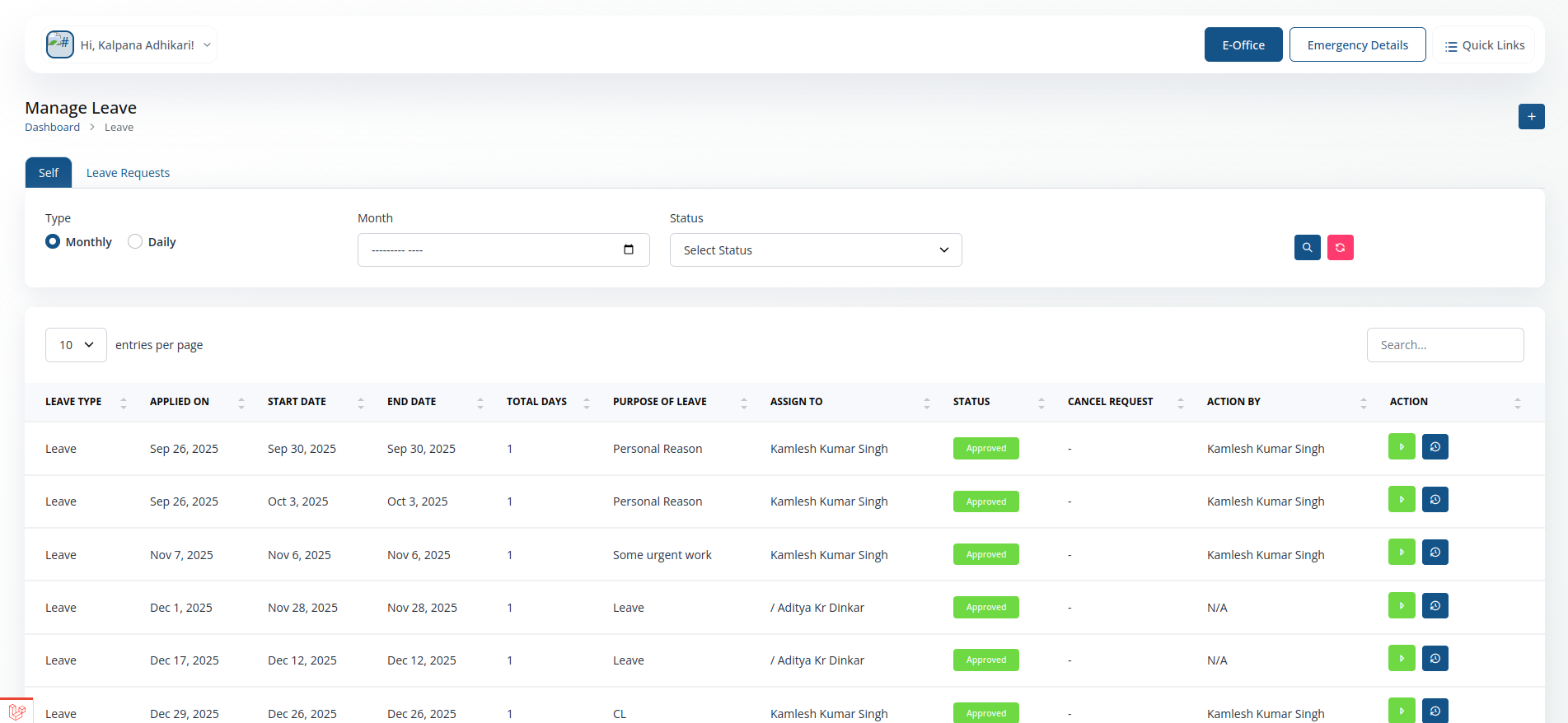
Manage Leave ->Self
- View your leave records for the current month.
- Filter leave records by month and year.
- Apply for leave by selecting type, dates and reason.
- Track the approval status of leave already applied for.
- Delete any pending Regularization requests if needed.
- Export your attendance records to Excel for offline review or record-keeping.
Manage Leave ->Leave Request
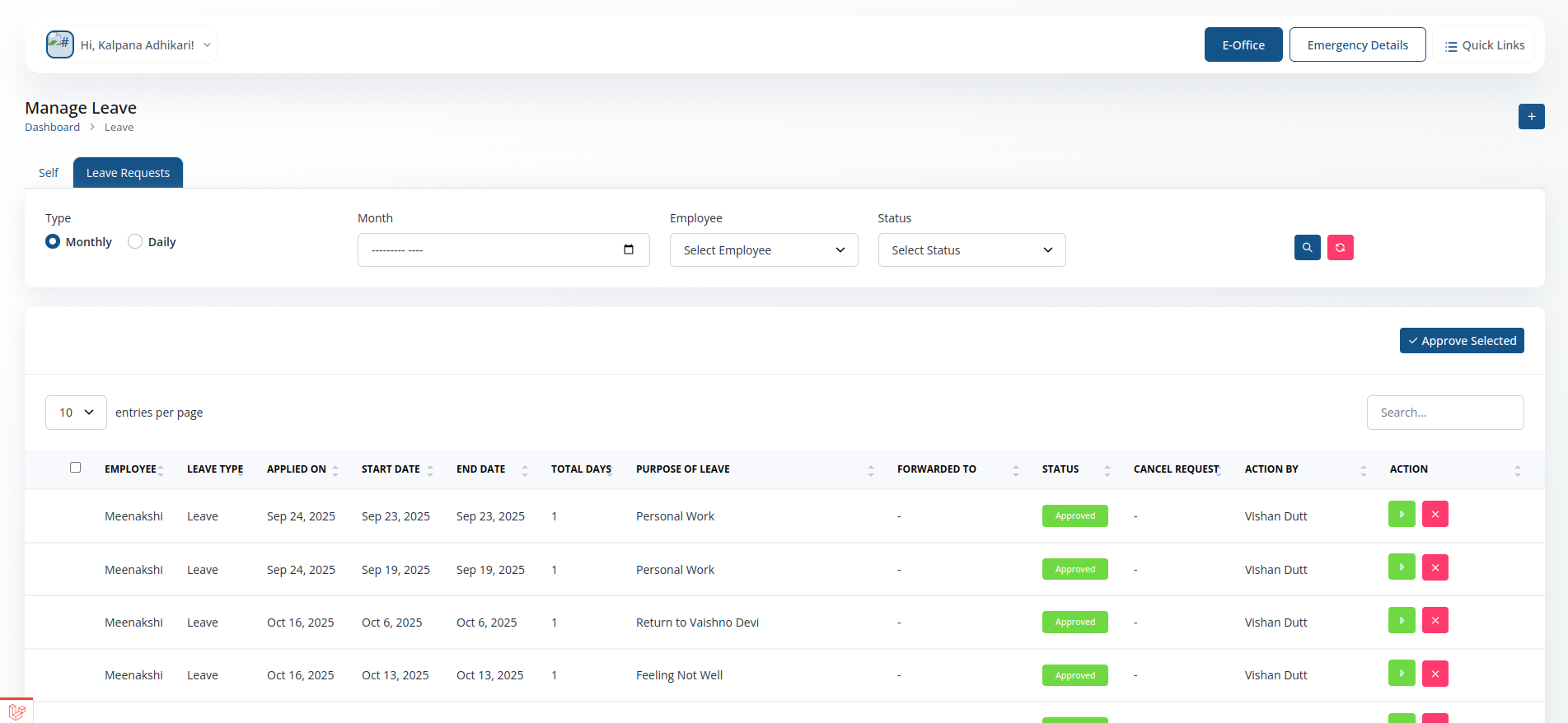
- Approve or reject leave requests submitted by employees.
- Filter requests by month, year, and employee name.
- View the details of each leave request, including the employee's name, dates, and reason for the request.
- Approve or reject requests with a single click, and optionally provide comments for your decision.
- Export the list of leave requests to Excel for record-keeping or reporting
Leave Report
A history of all leave taken.
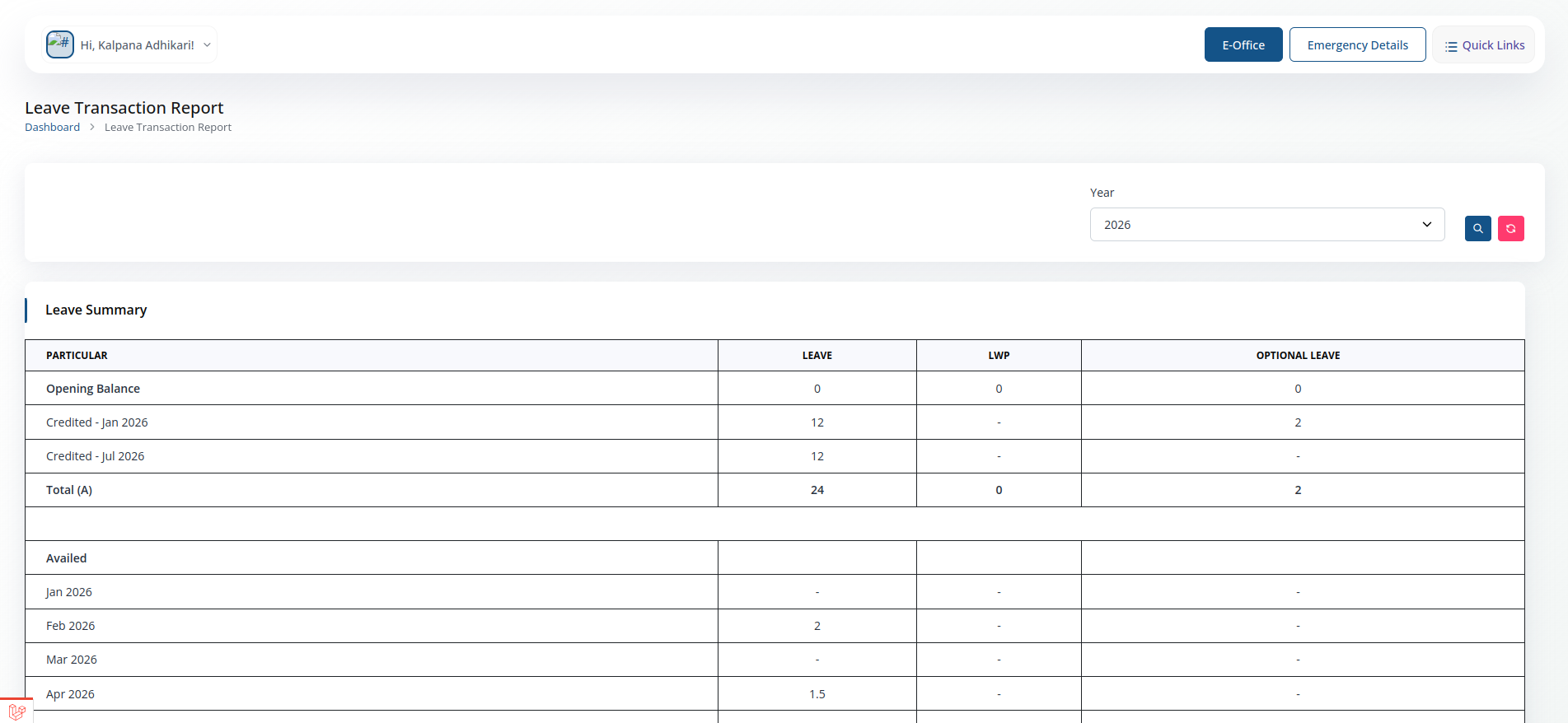
- Filter your leave history by year.
Tour Approval / Advance
Request approval and advance funds for an official tour.
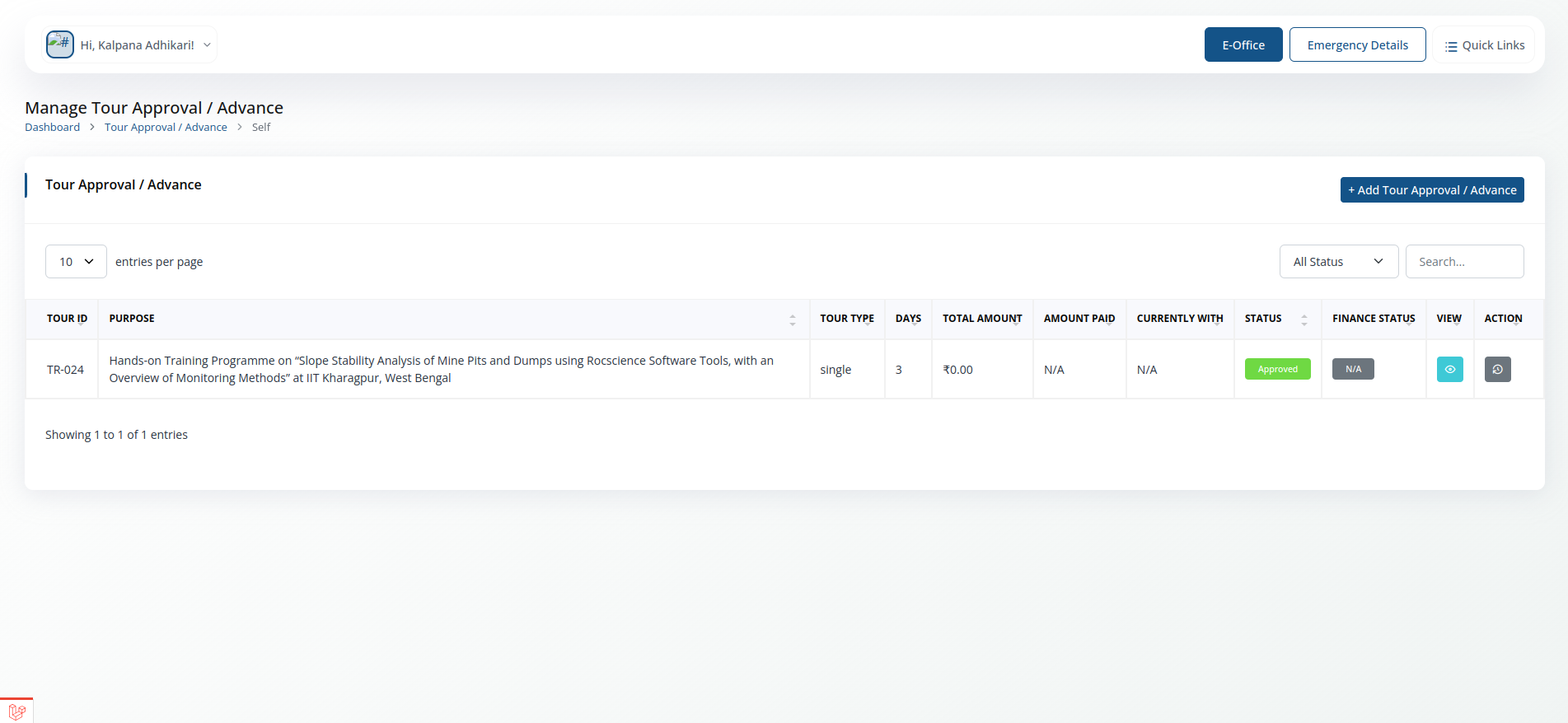
- Has two views: Self (your own submissions) and For Approval (items waiting on you, if you are a reporting manager).
- Enter tour dates, destination and purpose to request advance funds.
Tour Approval / Advance ->Self
- View your tour approval and advance requests.
- Filter requests by month, year, and status (Pending, Approved, Rejected).
- Submit new tour approval/advance requests by entering the required details.
- View the details of each request, including dates, destination, purpose, and amount requested.
- Track the approval status of your requests and any comments from approvers.
- Export the list of your requests to Excel for record-keeping or reporting.
Tour Approval / Advance ->Approval
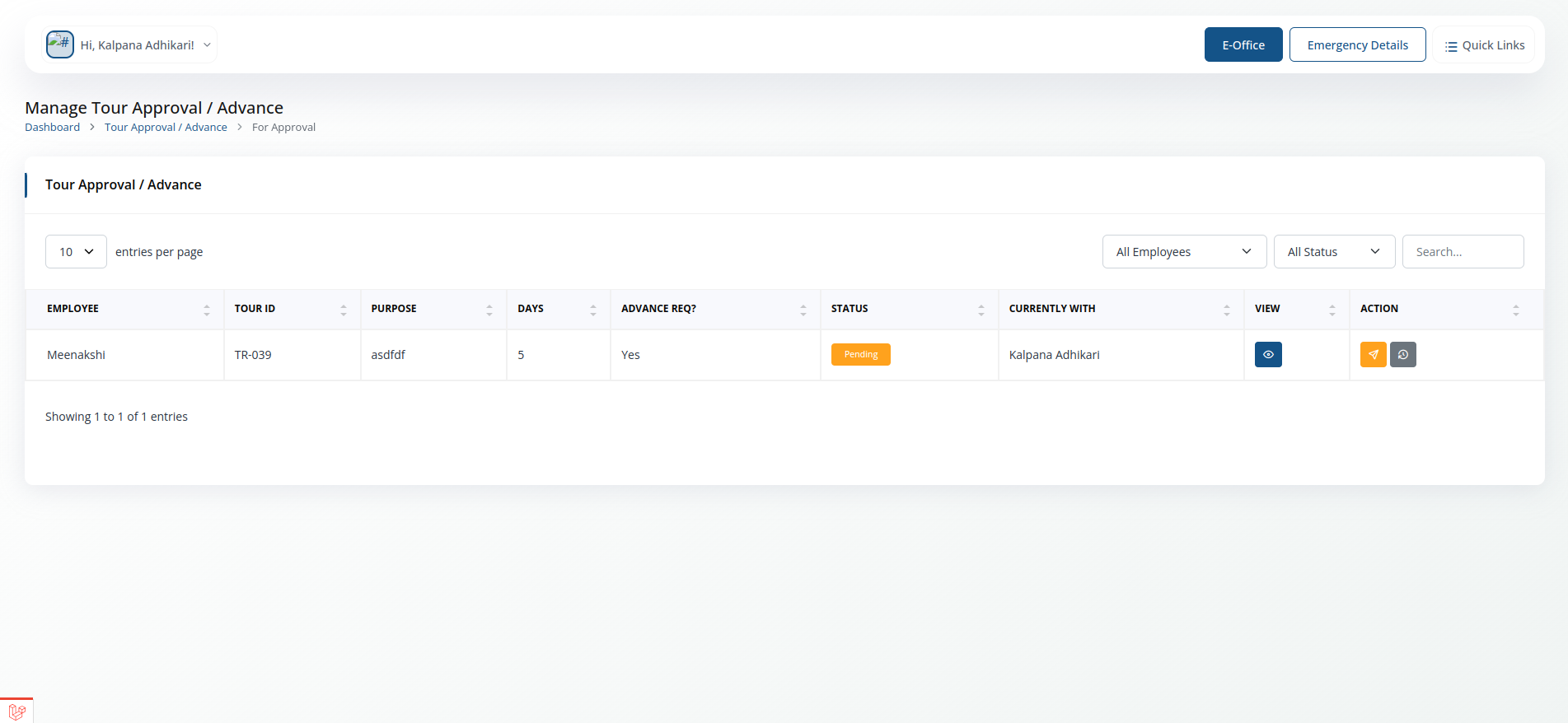
- Approve, Forward to higher authority or reject tour approval/advance requests submitted by employees.
- Filter requests by month, year, employee name, and status (Pending, Approved, Rejected).
- View the details of each request, including dates, destination, purpose, and amount requested.
- Approve or reject requests with a single click, and optionally provide comments for your decision.
- Export the list of requests to Excel for record-keeping or reporting.
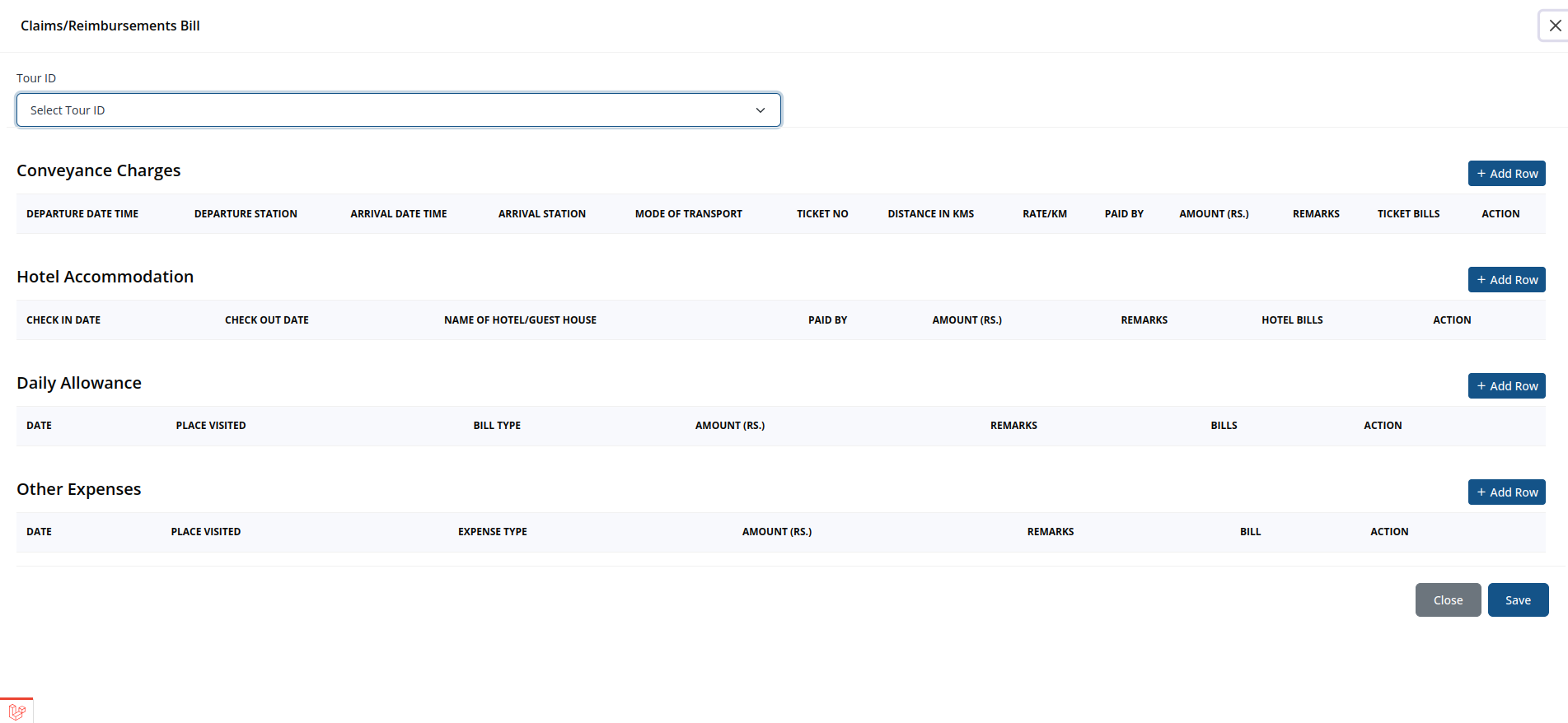
Tour Claim
Claim actual expenses incurred on a completed tour.
- Has two views: Self (your own submissions) and For Approval (items waiting on you, if you are a reporting manager).
- To Claim for a tour, first make sure your have created tour approval/advance request for that tour. Then select the tour from the list and enter the actual expenses incurred, along with any supporting documents.
- The rest of the flow is same as the Tour Approval / Advance module: your claim is routed to your reporting manager for approval, and you can track its status in the Self view.
Reimbursement
General expense reimbursement claims.
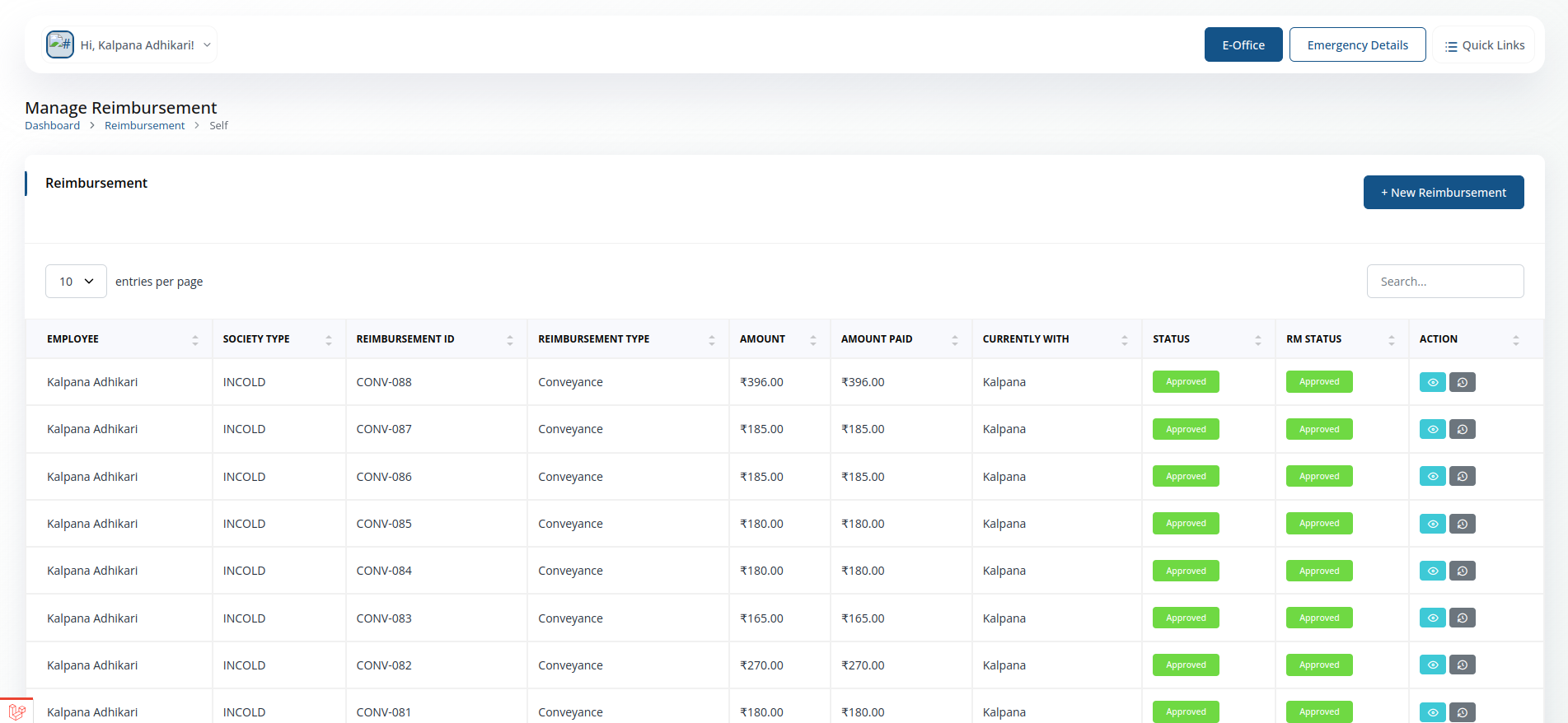
- Has two views: Self (your own submissions) and For Approval (items waiting on you, if you are a reporting manager).
- The flow is same as Tour Approval / Advance module
Advance for Office Expenses
Request an advance to cover an upcoming office expense.
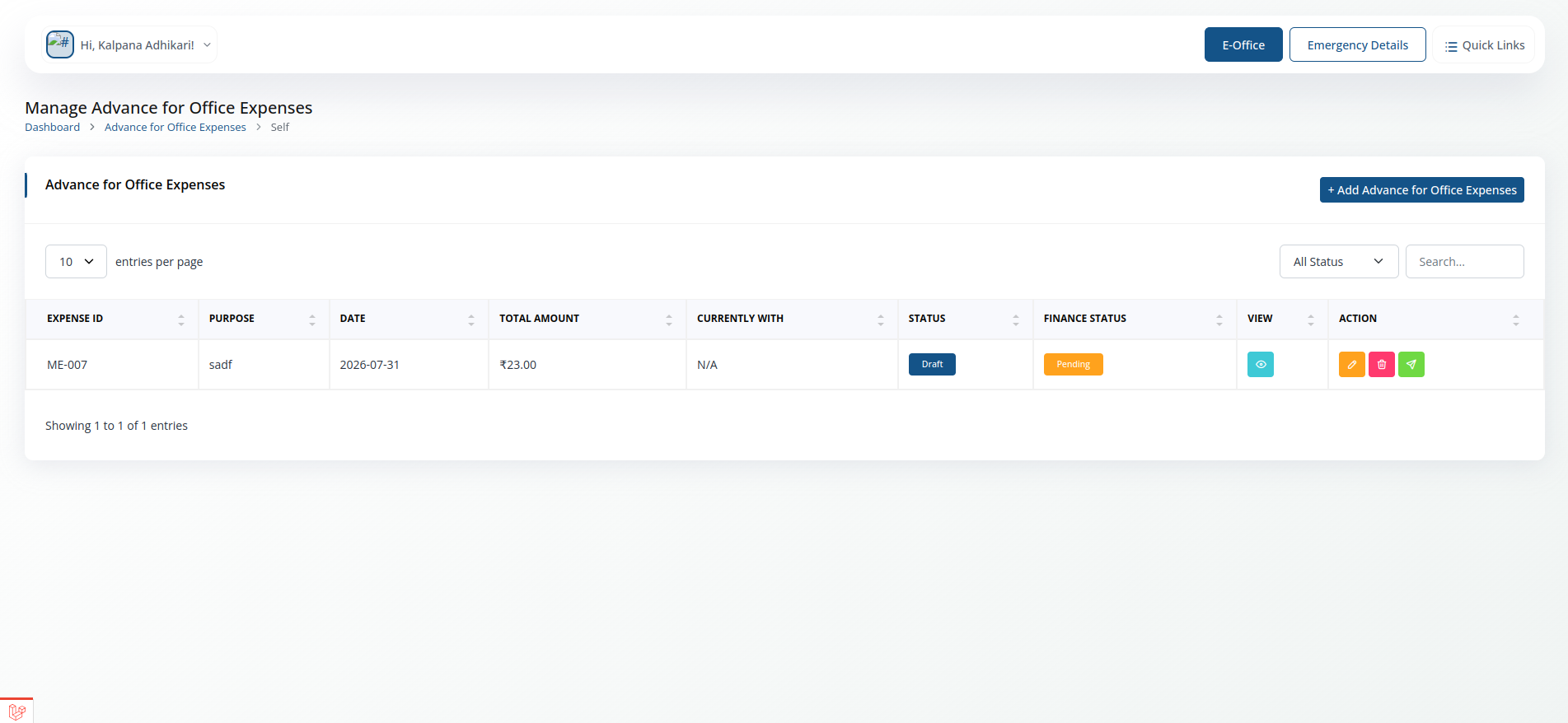
- Has two views: Self (your own submissions) and For Approval (items waiting on you, if you are a reporting manager).
- The flow is same as Tour Approval / Advance module
Office Expenses Bill
Submit the bill against an office expense advance.
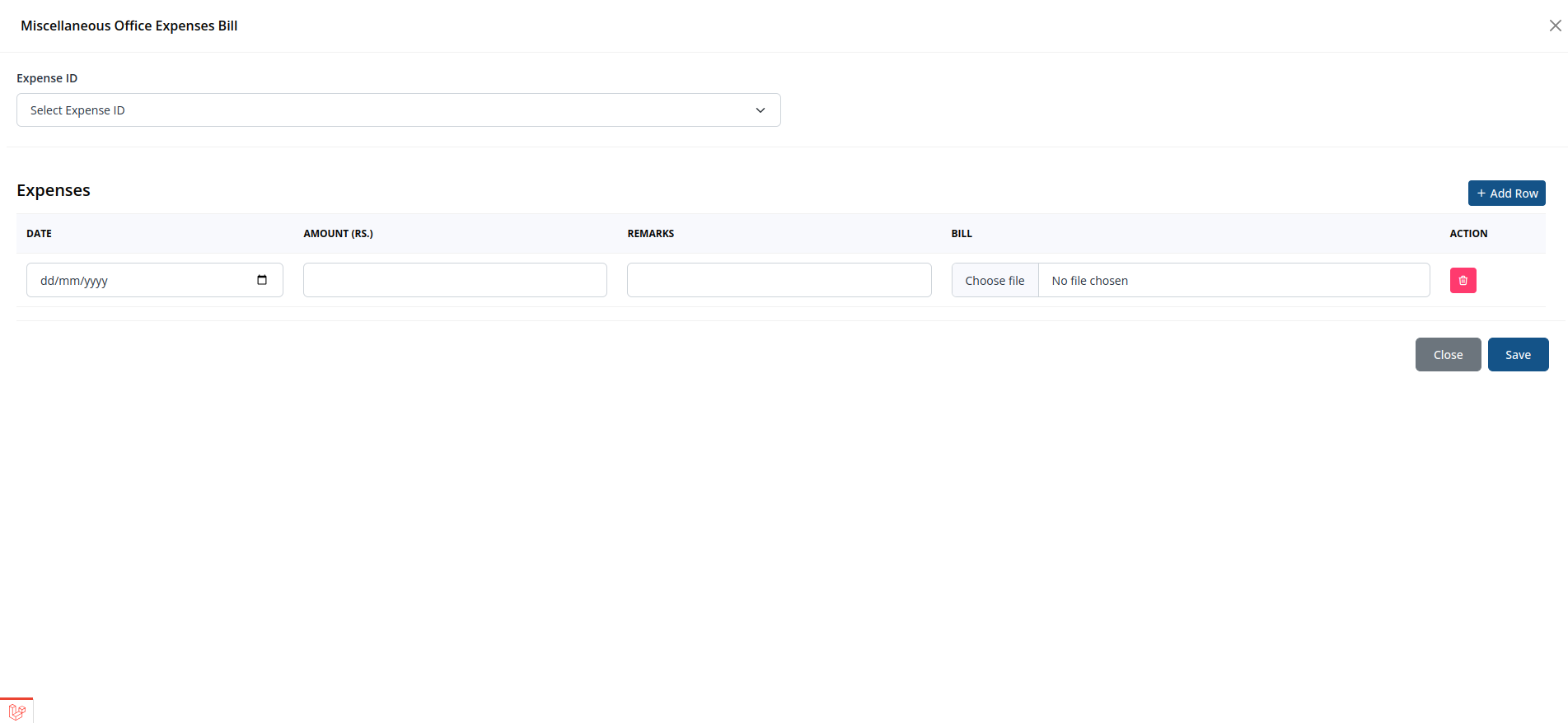
- Has two views: Self (your own submissions) and For Approval (items waiting on you, if you are a reporting manager).
- The flow is same as Tour Claim
Recoupment
Recover/settle amounts against an earlier advance.
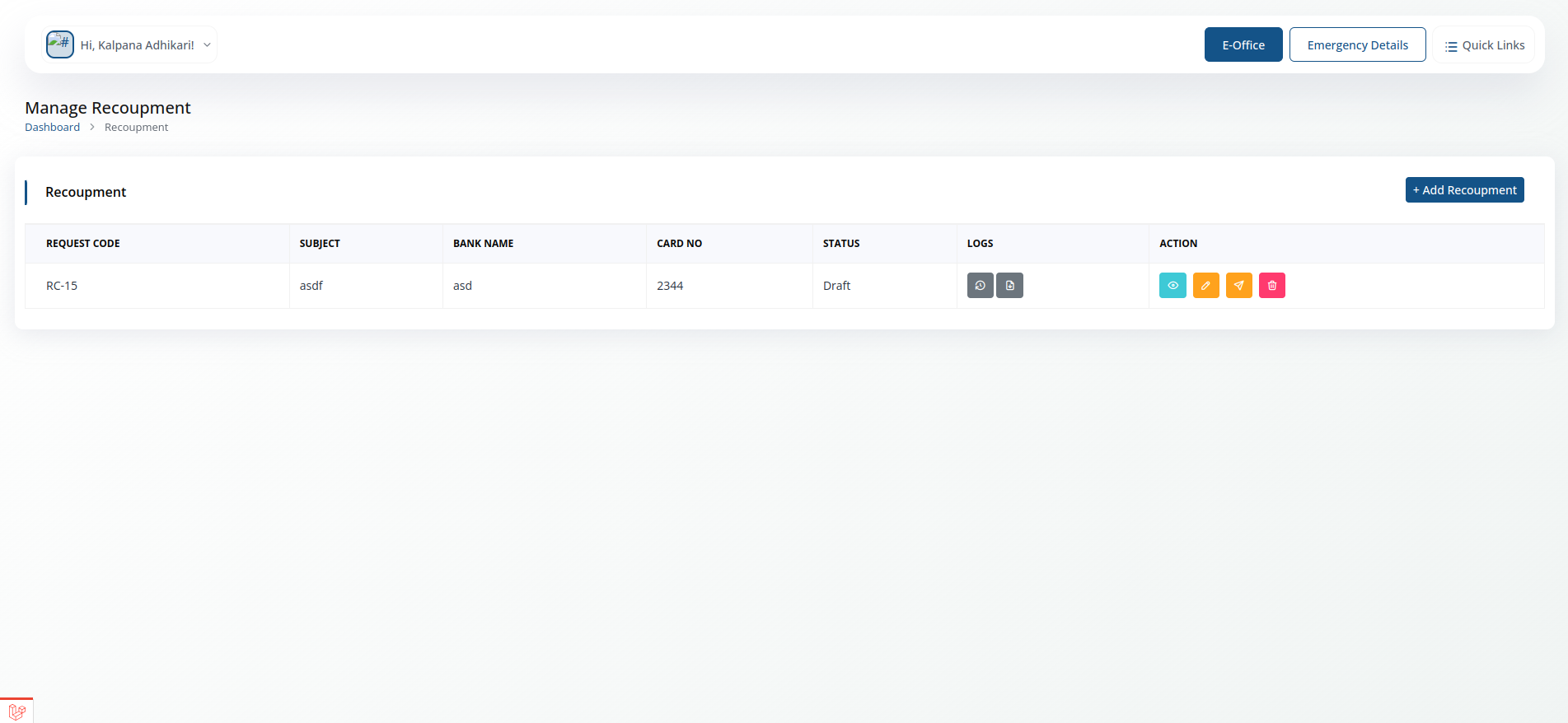
- Has two views: Self (your own submissions) and For Approval (items waiting on you, if you are a reporting manager).
- The flow is same as Tour Approval / Advance module
Imprest Recoupment
Recoup and top up a standing imprest amount.
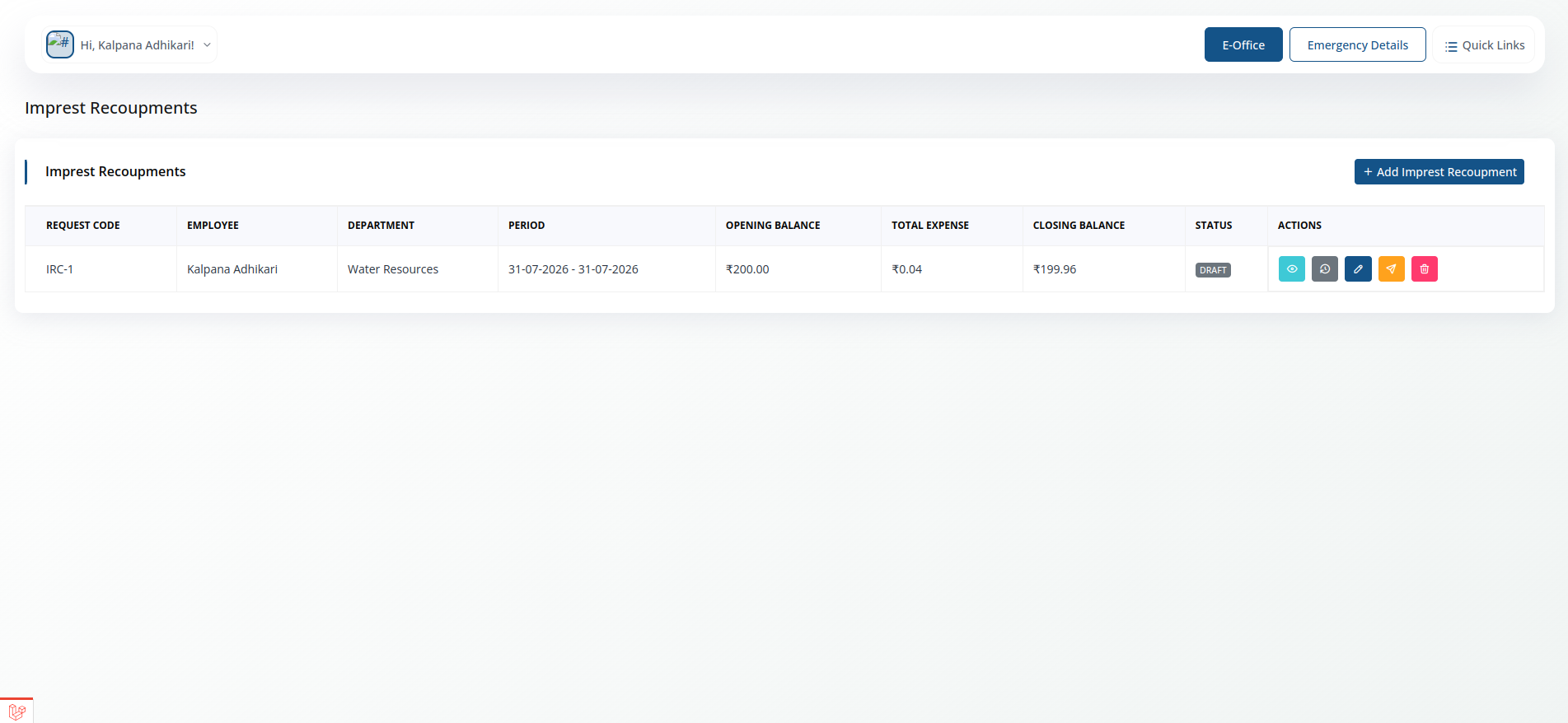
- Has two views: Self (your own submissions) and For Approval (items waiting on you, if you are a reporting manager).
- The flow is same as Tour Approval / Advance module